
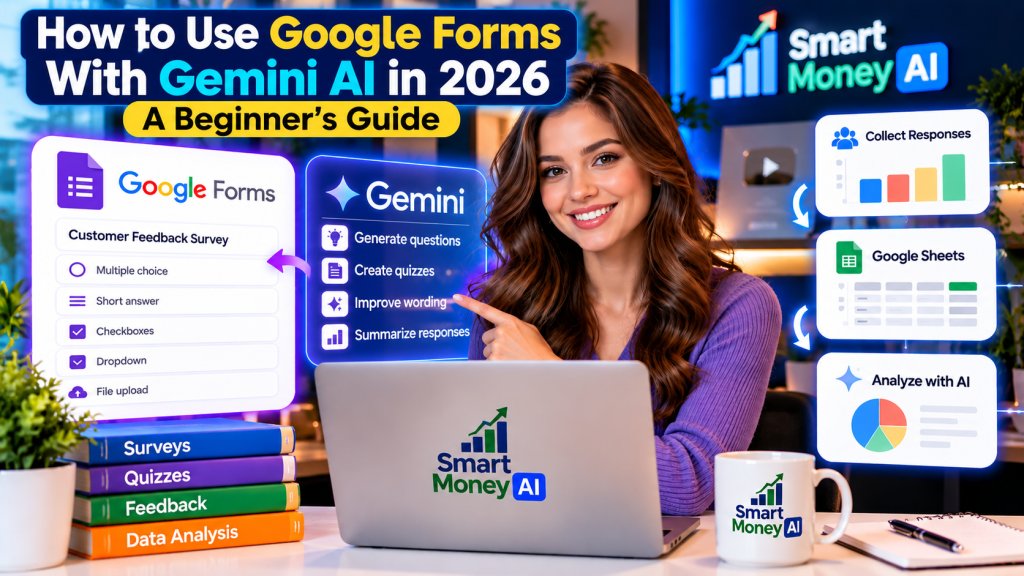
Creating online forms is an essential digital skill for students, freelancers, teachers, small-business owners, and professionals. Whether you need to collect customer feedback, conduct a survey, organize event registrations, or create a quiz, online forms can simplify the process.
Google Forms is a popular tool for collecting information online. It allows users to create questionnaires, share forms, review responses, and connect collected information with Google Sheets.
In 2026, artificial intelligence is making digital productivity tools more useful. Google’s Gemini AI can assist with selected tasks, such as developing questions, improving wording, organizing information, and, for eligible accounts, accessing supported AI features within Google Forms.
Learning how to use Google Forms with Gemini AI can help beginners create clearer questions, organize surveys, prepare quizzes, and analyze responses more efficiently.
If you’re wondering how to use Google Forms with Gemini AI for everyday tasks, start with a simple survey or quiz. Learning how to use Google Forms with Gemini AI step by step can help you write clearer questions, organize responses, and make better use of Google’s productivity tools.
However, AI features are not necessarily available to every Google account. Some capabilities depend on subscription eligibility, administrator settings, region, language, or the current product rollout.
In this beginner-friendly guide, you’ll learn how to create Google Forms, explore Gemini AI assistance, build surveys and quizzes, collect responses, connect Google Sheets, and use these tools responsibly.
Table of Contents
1. What Is Google Forms?
Google Forms is an online form-building application developed by Google.
It allows users to create forms, questionnaires, surveys, and quizzes without requiring programming knowledge.
You can use Google Forms to collect information from people through a shareable link.
For example, a small-business owner might create a customer feedback survey, while a teacher might prepare a quiz for students.
What Can You Create With Google Forms?
Common examples include:
- Customer feedback surveys.
- Event registration forms.
- Online questionnaires.
- Educational quizzes.
- Appointment request forms.
- Employee feedback forms.
- Market research surveys.
- Contact and inquiry forms.
- Workshop registration forms.
- Product feedback questionnaires.
Google Forms provides several question formats, including multiple-choice questions, checkboxes, dropdown menus, short answers, paragraph responses, and rating-style questions where supported.
The available options may change as Google updates the application.
Is Google Forms Free?
Google Forms offers core form-creation features through Google accounts.
Organizations can also access Google Forms through eligible Google Workspace plans.
You can visit the official Google Workspace website to explore its business productivity tools, available subscription plans, and information about Google Forms and Gemini-powered features.
Some advanced administrative, organizational, or Gemini-powered features may require a qualifying subscription.
Before relying on a specific feature, check its availability for your account.
2. What Is Gemini AI, and How Can It Help With Google Forms?
Gemini is Google’s family of artificial intelligence models and AI-powered assistant experiences.
You can explore Google Gemini on its official website to learn about its AI capabilities and use it to prepare survey questions, quiz ideas, and form descriptions before adding them to Google Forms.
Gemini can help users generate ideas, draft text, summarize information, and complete selected productivity tasks.
If you want to explore more practical applications of artificial intelligence, read our guide on how to use AI tools to improve productivity in 2026. It explains useful ways beginners can organize tasks, simplify everyday workflows, and work more efficiently.
When working with Google Forms, AI can assist in two different ways.
Method 1: Use Gemini as a Separate Writing Assistant
You can use Gemini to prepare questions, survey introductions, answer choices, and quiz ideas.
For example, you might ask Gemini to create 10 customer satisfaction questions for a small online store.
You can then review the suggestions and manually add suitable questions to Google Forms.
This approach does not require Gemini to have direct access to your form.
Method 2: Use Gemini Features Available Inside Google Forms
Google has introduced Gemini-powered capabilities for eligible Google Workspace environments.
Depending on current availability, supported features may help with form or quiz creation and related tasks.
The exact capabilities vary by account, subscription, administrator settings, and rollout.
If you do not see a Gemini option in Google Forms, it does not necessarily mean that your account is malfunctioning.
You can still create forms manually and use a separate AI assistant to prepare your content.
Important Difference
Using Gemini to draft survey questions is different from having Gemini automatically create or modify a Google Form.
Always check whether the particular feature is supported by your account before following instructions that depend on direct integration.
3. How to Create Your First Google Form: Step by Step
Let’s begin with the basic process.
Step 1: Open Google Forms
Visit the Google Forms website and sign in with your Google account.
You can access Google Forms through its official website to create surveys, questionnaires, registration forms, and quizzes using your Google account.
Depending on your account, you may see options to start a blank form or select a template.
Choose Blank form to create a new form from scratch.
Step 2: Add a Form Title
Give your form a clear, descriptive title.
For example:
Customer Satisfaction Survey
A useful title tells respondents what the form is about.
Step 3: Write a Short Description
Explain why you are collecting information and how it will be used.
Example:
“We’d appreciate your feedback about your recent shopping experience. This short survey will help us understand what we’re doing well and where we can improve.”
Avoid promising anonymity or confidentiality unless your form settings and data-handling practices support that promise.
Step 4: Add Your First Question
Select the question area and enter your question.
Example:
“How satisfied are you with your recent purchase?”
Choose an appropriate response format, such as multiple choice or a linear scale.
Step 5: Add More Questions
Use the add-question control to build your form.
For a customer survey, you might ask about:
- Product quality.
- Delivery experience.
- Customer support.
- Overall satisfaction.
- Suggestions for improvement.
Keep questions short and easy to understand.
Step 6: Choose Required Questions
Google Forms allows you to mark questions as required.
Use this option for information you genuinely need.
Avoid making every question mandatory, particularly when some questions may not apply to all respondents.
Step 7: Preview Your Form
Use the preview option to check how the form appears to respondents.
Review the wording, question order, and available answers.
Test the form before sharing it publicly.
Step 8: Share Your Form
Use the available sharing or publishing controls to make your form accessible to the intended respondents.
Depending on the interface and settings, you may be able to copy a respondent link, invite people, or embed the form on a website.
Make sure your access settings match your intended audience.
4. How to Use Google Forms With Gemini AI to Create Better Questions
One of the most practical ways to use AI with Google Forms is to prepare clearer questions before building a survey.
Clear prompts can help Gemini generate more relevant survey questions and useful suggestions. For additional guidance, read our article on how to write better AI prompts in 2026 and learn practical techniques for improving AI-generated results.
Example: Create a Customer Feedback Survey
Imagine you operate a small online business.
You want to understand whether customers are satisfied with their purchases.
Instead of brainstorming every question manually, you can ask Gemini for a starting point.
Example AI prompt:
“Create 10 clear and unbiased customer satisfaction survey questions for a small online store in the United States. Include a mixture of multiple-choice questions, rating-scale questions, and optional written feedback questions. Use simple language.”
Gemini may suggest questions about product quality, delivery, customer service, and the overall buying experience.
Review each question before adding it to Google Forms.
Example: Create an Event Registration Form
Suppose you’re organizing a free online workshop.
You could use this prompt:
“Create a beginner-friendly registration form outline for a free online digital skills workshop. Suggest a form title, short introduction, and eight relevant questions. Avoid requesting unnecessary personal information.”
The AI may suggest fields such as attendee name, preferred session, and learning interests.
Only collect information that is necessary for the event.
Example: Create a Training Feedback Form
Example AI prompt:
“Prepare a short feedback survey for participants who completed a beginner-level digital skills training session. Include five rating questions and three optional written-response questions.”
This can provide a useful starting structure.
How to Improve AI-Generated Questions
Review AI suggestions for:
- Clear wording.
- Neutral language.
- Relevance to your objective.
- Appropriate response options.
- Unnecessary personal questions.
- Repeated or overlapping questions.
- Questions that assume something about the respondent.
Good survey design matters more than simply generating a large number of questions.
5. How to Create Quizzes With Google Forms and Gemini AI
Google Forms can also be used to create educational quizzes.
This makes it useful for teachers, trainers, workshop organizers, and people developing learning materials.
Step 1: Create a New Form
Open Google Forms and start a blank form.
Enter a descriptive title.
Example:
Basic Digital Skills Quiz
Step 2: Enable Quiz Features
Open the form settings and locate the option to make the form a quiz.
The exact layout may vary depending on Google’s current interface.
Enable quiz functionality if it is available.
Step 3: Prepare Questions With Gemini
You can ask Gemini to suggest questions based on a specific topic.
Example AI prompt:
“Create 10 beginner-level multiple-choice quiz questions about Google Docs, Google Sheets, email safety, and cloud storage. Provide four answer options for each question and identify the correct answer. Include a brief explanation.”
Use the generated questions as a draft.
Verify the accuracy of the questions and answers before adding them to your quiz.
Step 4: Add Questions and Answer Keys
Enter your questions into Google Forms.
For supported question types, configure the correct answers and point values.
Step 5: Review Grading Settings
Check whether respondents should see scores immediately or after review.
The available grading controls depend on the quiz settings.
Step 6: Test Your Quiz
Complete the quiz yourself.
Check that the answer keys, scores, and instructions work correctly.
What About Gemini-Powered Quiz Generation?
Eligible Google Workspace users may have access to Gemini-powered quiz creation features in Google Forms.
These features can help generate quiz content from supported instructions or source material, depending on the current product capabilities.
If this functionality appears in your account, follow the on-screen guidance and review all generated questions carefully.
If it is unavailable, you can still use Gemini separately and build the quiz manually.
6. How to Choose the Right Google Forms Question Types
Selecting an appropriate question format helps respondents provide useful answers.
Short Answer
Use short-answer questions when respondents need to provide brief information.
Examples include a name, job title, or short response.
Paragraph
Paragraph questions are useful when you want detailed written feedback.
Example:
“What could we improve about your experience?”
Multiple Choice
Multiple-choice questions are suitable when respondents should select one answer from several options.
Checkboxes
Checkboxes allow respondents to select more than one option.
Example:
“Which digital skills would you like to learn?”
Dropdown
Dropdown questions can help keep longer answer lists organized.
Linear Scale
A linear scale can be useful for rating experiences or opinions.
For example:
“How satisfied are you with the workshop?”
Use clearly defined endpoints so respondents understand what the numbers mean.
Date and Time
Date and time fields can help collect scheduling preferences or relevant dates.
File Upload
File-upload questions may be available when appropriate account and form settings are used.
Before enabling file uploads, consider respondent sign-in requirements, storage, access permissions, and privacy.
Avoid collecting sensitive documents unless they are genuinely necessary and appropriately protected.
7. How to Connect Google Forms to Google Sheets
One of the most useful Google Forms features is the ability to work with Google Sheets.
You can explore Google Sheets on its official website to learn how spreadsheets help organize form responses, analyze survey data, calculate results, and create charts.
Google Sheets can help organize, review, and analyze collected responses.
Step 1: Open Your Form
Select the form whose responses you want to manage.
Step 2: Open the Responses Section
Locate the Responses area.
You should see available response information and related controls.
Step 3: Create or Select a Spreadsheet
Use the option to link responses to a spreadsheet.
Depending on the interface, you may be able to create a new spreadsheet or select an existing one.
Step 4: Review Collected Responses
When responses are recorded, the linked spreadsheet can display the submitted information.
This can help you organize the data using rows and columns.
Step 5: Analyze the Information
You can use Google Sheets to:
- Sort responses.
- Filter information.
- Count answers.
- Calculate averages where appropriate.
- Create charts.
- Identify common feedback themes.
For more complex analysis, you may need to clean or reorganize the collected data.
Why Is This Useful?
Suppose 100 customers complete your feedback survey.
Instead of reviewing every response individually, you can use Google Sheets to examine patterns.
For example, you might calculate the average satisfaction rating or identify which issues respondents mention most frequently.
Remember that survey results represent the people who responded, not necessarily every customer.
8. How to Analyze Google Forms Responses With AI
After collecting responses, you may want help identifying patterns and summarizing feedback.
AI can assist with selected analysis tasks.
However, the appropriate workflow depends on the data’s sensitivity and the tools available to you.
Method 1: Review Google Forms Summary Charts
Google Forms provides built-in response summaries for supported question types.
Start with these summaries before using additional tools.
They may already provide the information you need.
Method 2: Analyze Responses in Google Sheets
A linked spreadsheet can help you review numerical results and written responses.
Use filters, formulas, and charts to identify useful patterns.
Method 3: Ask Gemini to Help Interpret Non-Sensitive Data
You can provide a suitably anonymized summary of survey results to an AI assistant.
Example AI prompt:
“Analyze this anonymized customer feedback summary. Identify the three most common positive themes, the three most common complaints, and practical improvement opportunities. Use only the information provided and explain any uncertainty.”
Check that the resulting analysis accurately reflects the underlying data.
Important Privacy Reminder
Do not paste identifiable customer information, private employee feedback, confidential business records, or sensitive survey responses into an AI tool without proper authorization and appropriate safeguards.
When possible, analyze aggregated or anonymized information.
Also remember that AI can misinterpret survey responses or invent patterns that are not supported by the data.
9. Practical Uses of Google Forms for Beginners
Google Forms can support many everyday activities.
Small-Business Customer Feedback
Create a short survey to learn what customers think about your products or services.
Event Registrations
Collect registration details for webinars, workshops, or community events.
Freelance Client Questionnaires
Freelancers can use forms to gather basic project requirements before beginning work.
For example, a graphic designer might ask about a client’s project goals, preferred formats, and deadlines.
Training and Education
Teachers and trainers can create quizzes, knowledge checks, and course feedback forms.
Website Contact Forms
Website owners may use Google Forms for certain inquiry or feedback workflows.
However, consider whether the design, privacy requirements, and integration options suit your website.
Market Research
Use questionnaires to learn about customer preferences and potential demand.
Avoid treating a small convenience sample as proof of wider market trends.
Internal Team Feedback
Organizations may use forms to collect suggestions or understand employee experiences.
Privacy, confidentiality, and workplace policies should guide how these forms are designed and managed.
10. Common Mistakes to Avoid When Using Google Forms With Gemini AI
AI can make form preparation easier, but it does not automatically guarantee better results.
Mistake 1: Using AI Questions Without Reviewing Them
AI-generated questions may be unclear, repetitive, biased, or irrelevant.
Review each question before publishing your form.
Mistake 2: Creating Forms That Are Too Long
A long questionnaire can discourage participation.
Ask only questions that support your objective.
Mistake 3: Collecting Unnecessary Personal Information
Avoid requesting sensitive information unless it is essential and you have appropriate safeguards.
Mistake 4: Forgetting to Test the Form
Complete the form yourself before sharing it.
Check the response options, required fields, access permissions, and confirmation experience.
Mistake 5: Assuming Everyone Has Gemini Features
Some AI features are available only to eligible users.
Always provide a manual alternative when preparing instructions for beginners.
Mistake 6: Trusting AI-Generated Quiz Answers
AI may generate incorrect answers or misleading explanations.
Verify educational content using reliable materials.
Mistake 7: Ignoring Response Access Settings
Check who can respond and who can view collected information.
Review account restrictions before distributing a form to external respondents.
Mistake 8: Misinterpreting Survey Results
A survey can provide useful feedback, but the results may be influenced by who chose to participate.
Avoid making unsupported claims from limited data.
11. Is Google Forms With Gemini AI Safe?
Google Forms can be useful for collecting information, but privacy and security depend on your settings and data-handling practices.
Before sharing a form, consider what information you are requesting and why.
Basic Safety Practices
- Use a secure Google account.
- Enable multifactor authentication.
- Review form-sharing settings.
- Restrict access to response data when appropriate.
- Avoid collecting passwords or verification codes.
- Request only necessary personal information.
- Review file-upload permissions before enabling uploads.
- Check organizational policies when using Workspace accounts.
- Verify AI-generated content before publishing.
If you are collecting personal information from people in the United States, consider whether applicable privacy requirements affect your form.
For business or educational use, consult the relevant policies and official documentation.
12. A Simple 7-Day Google Forms Learning Plan
Beginners can learn Google Forms gradually.
Day 1: Explore the Interface
Open Google Forms and review the available templates, question types, and settings.
Day 2: Create a Basic Survey
Build a five-question customer feedback form.
Practice adding titles, descriptions, and required questions.
Day 3: Experiment With Gemini
Ask Gemini to suggest clearer survey questions.
Review the suggestions and add suitable questions manually.
If your account offers integrated Gemini features, explore them using a non-sensitive practice form.
Day 4: Create a Quiz
Enable quiz features and prepare a short knowledge test.
Check the answers and scoring settings.
Day 5: Connect Google Sheets
Link a practice form to a spreadsheet.
Submit a few test responses and review the results.
Day 6: Practice Data Analysis
Use the response summaries or Google Sheets to identify patterns.
Experiment with AI-assisted interpretation using fictional or anonymized data.
Day 7: Create a Real-World Project
Choose one useful project, such as an event registration form, customer feedback survey, or training questionnaire.
Test it thoroughly before sharing.
By the end of the week, you should have practical experience creating forms, managing responses, and using AI assistance responsibly.
Google Forms is just one useful digital skill for beginners. To discover other practical skills worth developing, explore our guide on the 10 best digital skills to learn in 2026 for beginners.
13. Frequently Asked Questions
Is Google Forms free to use?
Google Forms offers core form-building features through Google accounts. Certain organizational or AI-powered features may require an eligible Google Workspace subscription.
Can Gemini AI create Google Forms automatically?
Some eligible accounts may have access to integrated Gemini-powered form or quiz creation capabilities. Availability varies. You can also use Gemini separately to draft questions and then add them manually.
Do I need coding skills to use Google Forms?
No. Google Forms is designed for creating forms through a visual interface.
Can Google Forms collect customer feedback?
Yes. Businesses can create surveys to collect feedback about products, services, or customer experiences.
Can I connect Google Forms to Google Sheets?
Yes. Google Forms supports linking responses to Google Sheets for organization and analysis.
Can Gemini help create quiz questions?
Yes. Gemini can suggest quiz questions and answer options. You should verify the accuracy of all generated educational content.
Can I use Google Forms on a smartphone?
Google Forms can be accessed through supported web browsers on mobile devices. Some editing tasks may be easier on a desktop or laptop.
Is Google Forms suitable for small businesses?
Yes. It can be useful for feedback collection, registrations, inquiries, and simple questionnaires, provided its features and privacy settings meet the business’s requirements.
Can I use ChatGPT instead of Gemini to prepare form questions?
Yes. ChatGPT can help draft survey questions, quiz ideas, and form descriptions. You can review the results and manually add them to Google Forms.
If you’re unfamiliar with ChatGPT, explore our step-by-step guide on how to use ChatGPT for beginners. It explains how to write prompts, generate useful responses, and use AI for everyday digital tasks.
Can AI analyze Google Forms responses?
AI tools may help summarize and interpret appropriately prepared response data. Always check accuracy, protect personal information, and avoid drawing conclusions that the data does not support.
14. Final Thoughts
Learning how to use Google Forms with Gemini AI in 2026 can help beginners develop valuable digital skills.
Google Forms provides a straightforward way to create surveys, questionnaires, quizzes, and registration forms.
Gemini AI can support question writing, content preparation, and selected integrated workflows for eligible accounts.
When combined with Google Sheets, these tools can also help users organize responses and understand useful patterns.
The best approach is to begin with the basic features of Google Forms, explore AI assistance gradually, and review everything before sharing a form.
Whether you’re a student, freelancer, teacher, or small-business owner, learning these skills can help you collect information more efficiently and communicate more professionally.
Smart Money AI Editor’s Note
This article is provided for educational purposes. Google Forms, Gemini, and Google Workspace features may change, and AI capabilities may vary by subscription, region, language, account eligibility, and administrator settings.
Always review Google’s current official documentation before relying on a specific feature. AI-generated questions, quiz answers, and data interpretations should be checked for accuracy.
For more beginner-friendly guides on artificial intelligence, digital skills, and online productivity, explore Smart Money AI at smartmoneyaius.com.