Google renamed NotebookLM to Gemini Notebook in July 2026. This guide uses the familiar NotebookLM name while explaining the features of the updated Gemini Notebook research and learning platform.
Artificial intelligence is changing how people study, research, organize information, and learn new skills. However, finding reliable information across multiple documents, websites, and videos can still take considerable time.
Google NotebookLM is an AI-powered research and learning assistant designed to help users understand information from sources they choose. Instead of searching through lengthy documents manually, you can upload relevant materials, ask questions, generate summaries, and explore ideas using AI.
Whether you’re a student preparing for an exam, a professional reviewing reports, or a content creator researching a topic, learning how to use Google NotebookLM can make information easier to organize and understand.
In this beginner’s guide, you’ll discover how NotebookLM works, how to create your first notebook, how to upload sources, how to generate Audio Overviews, and how to use its features responsibly in 2026.
Table of Contents
1. What Is Google NotebookLM?
Google NotebookLM is an AI-powered research assistant that helps users work with information from documents, websites, videos, and other supported sources.
The platform allows you to create notebooks containing reference materials. You can then ask questions about those materials and receive AI-generated responses that reference your uploaded sources.
For example, imagine you have a 60-page research report.
Instead of reading the entire report to locate one specific fact, you could upload it to NotebookLM and ask:
“What are the five most important findings in this report?”
NotebookLM can generate a summary and provide references to relevant sections of the document.
This makes it useful for research, studying, professional learning, and organizing complex information.
However, AI-generated answers can contain mistakes. Users should always verify important information against the original sources.
Learning how to use Google NotebookLM can help beginners organize information, understand documents, and explore research materials more efficiently.
2. How Does Google NotebookLM Work?
NotebookLM uses AI to analyze the information available in your selected notebook.
The basic process involves four stages.
Stage 1: Create a Notebook
Start by creating a notebook dedicated to a particular subject, project, or research question.
For example, you might create a notebook called “Learning Digital Marketing.”
Stage 2: Add Information Sources
Upload relevant documents or add supported online sources.
These materials provide the information NotebookLM uses when answering questions.
Stage 3: Ask Questions
You can ask questions about your sources using natural language.
For example:
“What are the main differences between organic marketing and paid advertising?”
Stage 4: Explore AI-Generated Results
NotebookLM can help you produce summaries, explanations, notes, and other learning materials.
Some features also allow you to generate audio discussions, study resources, and visual learning materials.
The available features depend on your account, subscription, and current product availability.
3. Step 1: How to Use Google NotebookLM for the First Time
There are several reasons why beginners may find NotebookLM useful.
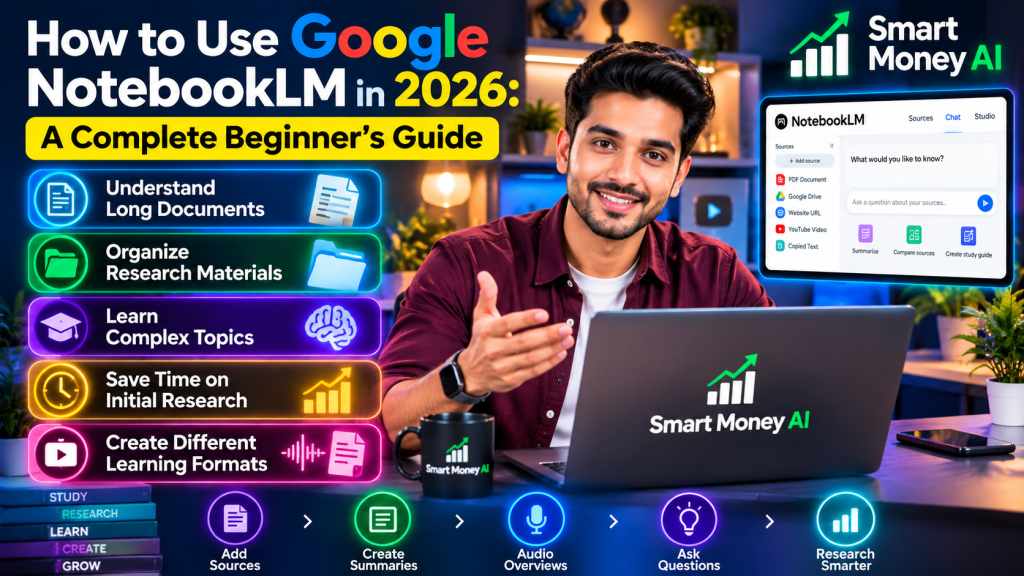
Understand Long Documents
Lengthy reports and research papers can be difficult to review quickly.
NotebookLM can identify important themes and explain information in simpler language.
Organize Research Materials
Instead of keeping research information scattered across multiple locations, you can collect relevant sources inside one notebook.
Learn Complex Topics
You can ask NotebookLM to explain unfamiliar concepts using information from your uploaded materials.
NotebookLM is one of several AI applications that can support research and education. For a broader comparison of useful research applications, explore our guide to 10 Best AI Tools for Research and Learning in 2026, which introduces different tools for finding, organizing, and understanding information.
Save Time on Initial Research
NotebookLM can help you locate relevant sections and identify connections between sources.
However, it should support your research process rather than replace careful reading.
Create Different Learning Formats
Some people prefer written explanations, while others learn more effectively through audio discussions, quizzes, or visual summaries.
NotebookLM offers multiple ways to explore source material.
4. Step 1: Open Google NotebookLM
To begin, visit the official Google NotebookLM website.
Sign in using a supported Google account.
After signing in, you’ll see the notebook interface, where you can create and manage research projects.
Depending on your account and the current interface, you may also see recently opened notebooks or additional research features.
For beginners, the best approach is to start with one simple project.
For example, create a notebook about a topic you already understand, such as basic digital marketing or personal productivity.
This makes it easier to evaluate whether the AI-generated explanations are accurate.
For official setup instructions, beginners can consult the Gemini Notebook setup guide. Google’s documentation explains how to create notebooks, organize research projects, and get started with the platform.
5. Step 2: Create Your First Notebook
Creating a notebook is straightforward.
Follow these steps:
- Open NotebookLM.
- Select the option to create a new notebook.
- Give the notebook a descriptive title.
- Add your first source.
- Wait for the source to finish processing.
For example, you could name your notebook:
“AI Tools Research 2026”
You might use this notebook to collect official documentation about different AI applications.
A clear notebook title makes it easier to identify your project later.
Beginner Tip
Create separate notebooks for unrelated topics.
For example, keep your business research separate from your study materials.
This reduces confusion and helps you work with the most relevant information.
6. Step 3: Add Sources to Google NotebookLM
One of NotebookLM’s most useful features is its ability to work with different source formats.
Supported sources can include:
- PDF documents
- Google Docs
- Google Slides
- Google Sheets
- Microsoft Word documents
- Text and Markdown files
- Supported images
- Website URLs
- Public YouTube videos with available captions
- Audio files
- Copied text
Supported formats and account limits may change over time.
Before uploading documents, review Google’s documentation on supported source formats. This resource explains which files and online materials can be imported, along with important source limitations.
Example: Uploading a PDF
Suppose you have downloaded an educational report.
Open your notebook and select the option to add a source.
Choose the PDF from your computer.
After the file has been processed, you can ask questions about its contents.
If you regularly work with lengthy PDF reports, manuals, or educational documents, learning additional document-analysis techniques can be helpful. Our guide on How to Use AI to Analyze PDF Documents in 2026 explains practical approaches to understanding PDF content with AI-assisted tools.
For example:
“Summarize the main findings in this document using simple English.”
Example: Adding a Website
You can also add a supported website URL.
NotebookLM generally works with the accessible text of the webpage rather than every visual or interactive element.
This means charts, embedded videos, or other page components may not be fully captured.
Example: Adding a YouTube Video
NotebookLM can work with supported public YouTube videos that have available captions.
The imported information is based on the video’s transcript.
This can help you review educational videos without manually writing extensive notes.
However, visual information that is not described in the transcript may be missing.
7. Step 4: Understand the NotebookLM Interface
The desktop interface generally organizes work into areas for sources, conversations, and generated materials.
Sources Area
This section displays the reference materials you’ve added to your notebook.
You can review sources and select which ones should be included in a particular conversation.
Chat Area
This is where you ask questions about your materials.
You can request explanations, comparisons, summaries, and other source-based responses.
Studio Area
The Studio area provides options for creating additional learning materials.
Depending on availability, these may include Audio Overviews, reports, study resources, and other generated formats.
Understanding these areas makes the platform easier to navigate.
8. Step 5: Ask Your First Question
Once you’ve uploaded a source, you can begin asking questions.
Start with simple requests.
For example:
“Summarize this document in five bullet points.”
You can then ask follow-up questions.
“What are the most important conclusions?”
“Explain the third conclusion using beginner-friendly language.”
“Which sections support this explanation?”
NotebookLM is particularly useful when your questions refer to information contained in the uploaded materials.
How to Write Better Questions
Specific questions usually produce more useful responses.
Instead of asking:
“Explain this.”
Try:
“Explain the three main recommendations in this report and identify the evidence supporting each recommendation.”
Clear instructions help the AI understand what information you need.
Learning to write clear instructions can improve your experience with many AI applications. For additional examples and practical techniques, read our guide on How to Write Better AI Prompts in 2026, which explains how beginners can create more specific and useful AI prompts.
9. Step 6: Use Source Citations to Verify Answers
One important feature of NotebookLM is its ability to connect answers to source material.
When NotebookLM provides citations, you can inspect the referenced information.
This helps you determine whether the answer accurately represents the original document.
For example, suppose NotebookLM states that a research report identified a particular trend.
You should open the cited section and confirm that the report actually supports the statement.
To understand how source-based answers work, read Google’s source citation guidance. It explains how users can inspect citations, review supporting passages, and check whether AI-generated answers accurately reflect their research materials.
Why Citation Checking Matters
AI tools can occasionally:
- Misinterpret information
- Omit important context
- Combine unrelated details
- Present uncertain conclusions too confidently
- Produce incomplete explanations
Source citations make verification easier, but they do not guarantee that every answer is correct.
For academic, financial, legal, or medical topics, additional verification may be necessary.
10. Step 7: Generate Summaries From Documents
Document summarization is one of the easiest ways to start using NotebookLM.
Imagine you’ve uploaded a lengthy business report.
You could ask:
“Summarize this report in 200 words for someone with no business background.”
You could also request:
“Create a list of the ten most important points.”
Or:
“Explain the main recommendations and their supporting evidence.”
Practical Example
Suppose you’re learning about online marketing.
You upload three educational documents about search engine optimization.
NotebookLM can help identify common themes and explain differences between the sources.
This provides a starting point for deeper learning.
Remember to read the original material when accuracy is important.
11. Step 8: Compare Multiple Sources
NotebookLM can help users identify similarities and differences across documents.
For example, you might upload three reports about the same industry.
Then ask:
“Compare the main findings from these three reports.”
You could follow up with:
“Which recommendations appear in more than one report?”
Or:
“Where do the sources disagree?”
Why This Is Useful
Comparing sources can help you understand whether different authors reach similar conclusions.
It may also reveal disagreements that deserve further investigation.
However, the quality of the comparison depends on the quality and relevance of your sources.
Avoid treating agreement between several unreliable sources as proof that a claim is accurate.
12. Step 9: Create Audio Overviews
Audio Overviews are among NotebookLM’s most recognizable features.
They turn information from selected sources into an AI-generated audio discussion.
Depending on the available format, the discussion may feature AI hosts explaining ideas and exploring key points.
Once you understand how to use Google NotebookLM, you can explore Audio Overviews to turn source materials into engaging audio discussions.
If you’re interested in generating podcast-style discussions from your research, explore the official Audio Overview instructions. Google’s documentation explains how to create, customize, and use AI-generated audio summaries.
How to Create an Audio Overview
- Open a notebook containing relevant sources.
- Find the Studio section.
- Select Audio Overview.
- Choose any available customization options.
- Generate the overview.
- Wait for processing to finish.
- Listen to the generated audio.
Available formats, languages, and customization options can vary.
When Audio Overviews Are Helpful
Audio summaries can be useful when you want to review educational material while doing another low-attention activity.
For example, you might listen to an overview of a research report during a walk.
However, listening to an AI-generated discussion is not a substitute for reviewing the original material when precision matters.
Important Limitation
Audio Overviews are generated by AI.
They may contain inaccurate statements, pronunciation problems, or missing context.
Always verify important claims before using them in published work.
13. Step 10: Create Study Guides and Learning Materials
NotebookLM can also help organize information into study-friendly formats.
Depending on the current features available to your account, you may be able to create:
- Study guides
- Frequently asked questions
- Flashcards
- Practice quizzes
- Reports
- Other structured learning materials
Students and independent learners can explore Google’s guide to NotebookLM learning features to understand how AI-generated flashcards, quizzes, study guides, and other learning resources can support their studies.
Example for Students
Suppose you’re studying an introductory economics chapter.
Upload the relevant study materials.
Then request:
“Create a beginner-friendly study guide covering the main concepts.”
You could also ask:
“Generate ten practice questions based on these sources.”
Example for Professionals
A professional learning a new workplace process could upload approved training documents.
NotebookLM could help summarize the steps and explain unfamiliar terminology.
Any confidential workplace information should be handled according to the organization’s privacy and AI-use policies.
14. Step 11: Use NotebookLM for Research Projects
NotebookLM can help organize research around a specific question.
For example, imagine you’re researching how small businesses use artificial intelligence.
You could create a notebook containing:
- Official product documentation
- Industry reports
- Educational articles
- Public research papers
- Relevant interview transcripts
After adding these sources, ask NotebookLM to identify common themes.
You could request:
“What are the most frequently mentioned benefits of AI adoption?”
Then ask:
“What challenges do the sources identify?”
Research Best Practice
Use reputable sources whenever possible.
Official documentation, established educational institutions, and well-supported research reports are generally stronger starting points than anonymous promotional content.
Also check publication dates.
A source that was accurate several years ago may no longer reflect current technology.
15. Step 12: Use NotebookLM for Content Planning
Content creators can use NotebookLM to organize research before writing.
For example, a technology blogger might collect official documentation about an AI tool.
NotebookLM could help identify:
- Important features
- Common use cases
- Product limitations
- Beginner questions
- Topics requiring further research
This information can support article planning.
Example Workflow
First, gather reliable information about a topic.
Next, upload the materials into a notebook.
Then ask:
“Identify the most important beginner questions answered by these sources.”
After reviewing the results, create an original article outline.
Finally, write the article using your own explanations, examples, and analysis.
Avoid Copying Sources
NotebookLM should not be used to reproduce copyrighted articles or reports without permission.
Use the tool to understand information and develop original content.
When appropriate, credit the original sources.
16. Step 13: Use NotebookLM for Workplace Learning
Professionals may use NotebookLM to understand approved training materials, product documentation, and internal procedures.
For example, an employee learning a new software platform could upload its user manual.
They could ask:
“Explain the basic setup process for a beginner.”
Or:
“What are the most common troubleshooting steps mentioned in this manual?”
This can make lengthy documentation easier to navigate.
Privacy Reminder
Never upload confidential company documents, customer records, or sensitive financial information without appropriate authorization.
Organizations may have specific rules governing the use of AI tools.
Always follow those requirements.
17. Step 14: Organize Notes and Important Findings
Research often produces useful information that needs to be saved for later.
NotebookLM includes note-related capabilities that can help users organize selected findings.
For example, you could save a summary of important research conclusions.
You might also organize notes around questions you want to investigate further.
Suggested Organization Method
Use descriptive notebook names.
Keep unrelated projects separate.
Give notes clear titles.
Review saved information periodically.
Remove outdated material when it is no longer useful.
Good organization becomes increasingly important as your collection of notebooks grows.
18. Step 15: Learn How Notebook Sharing Works
NotebookLM provides sharing options that can support collaboration.
Depending on the account and sharing settings, notebook owners may be able to grant viewing or editing access.
This can be useful for group research or collaborative learning.
However, sharing permissions require careful attention.
A person with access to a notebook may also be able to view its underlying sources or generated materials.
Before collaborating with others, review the official notebook sharing instructions. Google’s documentation explains sharing permissions and why users should carefully review access to their notebook sources and generated materials.
Before Sharing a Notebook
Check whether the notebook contains private information.
Review the sharing permissions.
Confirm that every source is appropriate to share.
Avoid sharing copyrighted materials beyond your rights or permissions.
Remember that a shared research notebook is not automatically a secure document-management system.
19. Step 16: Understand NotebookLM’s Free and Paid Options
NotebookLM offers access through different account and subscription arrangements.
The free version provides a useful starting point for beginners.
Paid plans may offer higher usage limits or additional capabilities.
These limits can include the number of notebooks, sources, conversations, and generated materials.
Should Beginners Pay for NotebookLM?
Most beginners should first explore the available free features.
Start with a small project and determine whether NotebookLM improves your research or learning process.
Consider a paid plan only if you regularly reach usage limits or need features unavailable in your current plan.
Pricing, availability, and subscription benefits can change.
Always review Google’s current official plan information before making a decision.
20. Step 17: Understand NotebookLM’s Limitations
For additional information about technical limitations and common questions, consult the Gemini Notebook frequently asked questions. This official resource explains important details about source limits, imported files, citations, and other platform capabilities.
Although NotebookLM can be helpful, it has several limitations.
AI Responses May Be Incorrect
An answer may sound convincing while containing mistakes.
Source Quality Matters
NotebookLM cannot automatically turn inaccurate documents into reliable information.
Some Source Content May Be Missing
Imported websites and videos may not include every visual or interactive element.
Generated Audio May Contain Errors
Audio discussions can misstate details or omit important context.
Features and Limits May Change
Google may update supported formats, account limits, and interface features.
It Is Not a Replacement for Professional Judgment
Important financial, legal, medical, and business decisions require appropriate expertise and verification.
Understanding these limitations helps users work with the platform responsibly.
21. Step 18: Protect Your Privacy When Using NotebookLM
Privacy is especially important when working with AI research tools.
Before uploading a document, consider what information it contains.
Avoid sharing:
- Passwords
- Banking credentials
- Government identification numbers
- Private customer records
- Confidential business information without permission
- Sensitive personal information that is unnecessary for the task
Practical Privacy Tips
Use sample documents when learning.
Remove unnecessary personal details.
Review Google’s current privacy documentation.
Check notebook-sharing settings.
Follow workplace or school policies.
Use only documents you are authorized to upload.
Google’s data-handling protections may vary by account type and applicable service terms, so review the relevant policies rather than assuming every account has identical protections.
22. Ten Useful NotebookLM Prompts for Beginners
Here are ten practical prompts you can try with your own sources.
Prompt 1: Simple Summary
“Summarize the main ideas from these sources in clear, beginner-friendly English.”
Prompt 2: Key Findings
“Identify the ten most important findings and explain why each one matters.”
Prompt 3: Compare Documents
“Compare these documents and explain their main similarities and differences.”
Prompt 4: Explain a Difficult Concept
“Explain the most complicated concept in these sources using a simple example.”
Prompt 5: Study Guide
“Create a structured study guide covering the key topics in these materials.”
Prompt 6: Frequently Asked Questions
“Generate ten frequently asked questions and answer them using the uploaded sources.”
Prompt 7: Research Gaps
“What important questions are not answered by these sources?”
Prompt 8: Practical Applications
“Identify practical examples mentioned in the sources and explain how they work.”
Prompt 9: Evidence Check
“List the main conclusions and identify which source passages support them.”
Prompt 10: Beginner Learning Plan
“Create a seven-day learning plan based on these materials, starting with basic concepts.”
These prompts work best when your notebook contains relevant, reliable information.
23. Five Common Mistakes Beginners Should Avoid
Mistake 1: Uploading Unreliable Sources
AI-generated summaries can reflect inaccuracies in the original materials.
Choose sources carefully.
Mistake 2: Trusting Every AI Answer
Always verify important claims.
Mistake 3: Asking Vague Questions
Clear, specific prompts generally produce more useful results.
Mistake 4: Mixing Unrelated Projects
Keeping unrelated research in one notebook can make information harder to organize.
Mistake 5: Uploading Sensitive Information
Review documents and permissions before adding them to any AI platform.
Avoiding these mistakes can make NotebookLM more useful and dependable.
24. Google NotebookLM vs. General AI Chatbots
NotebookLM and general-purpose AI chatbots can both help users understand information.
However, their typical workflows are different.
NotebookLM is particularly useful when you want answers connected to a defined collection of sources.
A general AI chatbot may be better suited to broader brainstorming, writing assistance, or open-ended conversations.
If you’re new to general-purpose AI assistants, our tutorial on How to Use ChatGPT for Beginners explains how to get started, write effective prompts, and explore practical everyday applications. Understanding both ChatGPT and NotebookLM can help you choose the right tool for different tasks.
When NotebookLM May Be the Better Choice
Choose NotebookLM when you want to:
- Analyze a particular report
- Compare selected documents
- Review educational materials
- Explore source-based explanations
- Generate learning resources from your references
When a General AI Chatbot May Be Better
A general-purpose chatbot may be useful for:
- Brainstorming ideas
- Drafting original text
- Practicing conversations
- Exploring topics beyond a fixed document collection
- Working on broader creative tasks
Many users can benefit from understanding both approaches.
The right choice depends on the task rather than which platform appears more advanced.
25. A Seven-Day Google NotebookLM Learning Plan
Beginners can develop confidence through a simple practice schedule.
Day 1: Explore the Interface
Create an account or sign in.
Open the notebook dashboard.
Create your first notebook.
Day 2: Upload a Document
Add a short educational PDF.
Ask for a summary.
Compare the summary with the original document.
Day 3: Practice Asking Questions
Ask specific questions about your uploaded source.
Experiment with follow-up prompts.
Check the citations.
Day 4: Compare Multiple Sources
Add two or three related documents.
Ask NotebookLM to identify similarities and differences.
Day 5: Generate an Audio Overview
Explore the Studio section.
Create an Audio Overview from your sources.
Listen carefully and check important claims.
Day 6: Create Learning Materials
Generate a study guide or another available learning resource.
Review its accuracy.
Day 7: Complete a Mini Research Project
Choose a topic you’re interested in.
Collect reliable sources.
Create a notebook.
Ask questions.
Save useful findings.
Prepare a short original summary of what you’ve learned.
By the end of the week, you’ll have practiced the platform’s most important beginner workflows.
26. Frequently Asked Questions About Google NotebookLM
Is Google NotebookLM Free?
Google provides a free access option, although usage limits apply. Paid arrangements may provide higher limits or additional features.
Can Beginners Use NotebookLM?
Yes. Beginners can start by uploading a short document and asking simple questions.
Can NotebookLM Read PDF Documents?
Yes. PDF files are among its supported source formats, subject to applicable file limits and restrictions.
Can NotebookLM Summarize YouTube Videos?
It can work with supported public YouTube videos that have available captions. The imported information comes from the transcript rather than a complete understanding of every visual scene.
Does NotebookLM Provide Sources for Its Answers?
NotebookLM can provide citations connecting responses to uploaded materials. Users should still check whether the cited passages support the answer.
Can NotebookLM Create Podcasts?
Its Audio Overview feature can generate podcast-style discussions about uploaded materials. These are AI-generated audio summaries rather than independently researched human podcasts.
Is NotebookLM Better Than ChatGPT?
Neither tool is automatically better for every task. NotebookLM emphasizes working with selected sources, while general-purpose AI chatbots support a wider range of conversations and creative tasks.
Can I Use NotebookLM for Business Research?
Yes, provided you use appropriate sources and follow privacy, confidentiality, and organizational requirements.
Can NotebookLM Replace Reading?
No. It can make information easier to explore, but important details should still be checked against the original material.
Is NotebookLM Useful for Content Creators?
Yes. It can help content creators organize research, compare sources, identify questions, and plan original educational content.
27. Final Thoughts: Is Google NotebookLM Worth Learning in 2026?
Google NotebookLM is a useful AI research and learning tool for people who regularly work with documents, educational resources, reports, and other reference materials.
Its ability to answer questions using selected sources makes it particularly helpful for understanding complex information.
Features such as document summaries, source citations, Audio Overviews, and study materials can make learning more flexible.
However, responsible use remains essential.
Always choose reliable sources, verify important claims, respect copyright, and protect private information.
If you’re just getting started, begin with one notebook and a few trustworthy documents.
As you become more comfortable, experiment with source comparisons, structured questions, and different learning formats.
Learning how to use Google NotebookLM in 2026 can be a valuable addition to your digital skills, especially when combined with critical thinking and careful research.
Knowing how to use Google NotebookLM is a useful digital skill for students, researchers, content creators, and professionals who regularly work with information.
Editor’s Note: This guide is intended for educational purposes. Google may change NotebookLM features, pricing, limits, and availability. Check official product documentation for current information.