
Managing multiple tasks, deadlines, and projects can become overwhelming, especially when you’re working with a small team or handling several responsibilities yourself.
You might have important tasks written in a notebook, reminders saved on your phone, and project updates scattered across emails.
The problem isn’t always having too much work. Sometimes, it’s simply not having a clear system for organizing everything.
That’s where Trello can help.
Trello is a visual project management tool that helps individuals and teams organize tasks, track progress, and collaborate using boards, lists, and cards.
Whether you’re a student managing assignments, a freelancer working with clients, or a small business owner organizing daily operations, Trello provides a practical way to see what needs to be done.
You don’t need advanced technical skills to get started.
In this beginner-friendly guide, you’ll learn how to use Trello for project management in 2026, create your first board, organize tasks, manage deadlines, collaborate with others, and build a simple workflow that keeps projects moving forward.
Table of Contents
What Is Trello?
Trello is a project management and task organization platform developed by Atlassian.
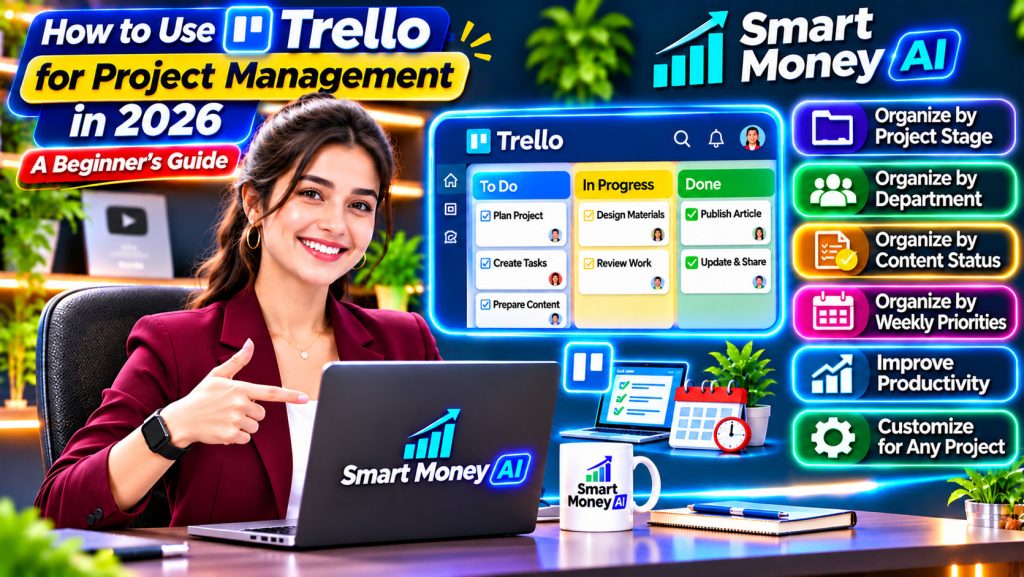
It uses a visual system based on boards, lists, and cards.
Instead of managing your entire project through spreadsheets or lengthy email conversations, you can organize work into a visual workflow.
For example, imagine you’re managing a website project.
You could create three lists:
- To Do
- In Progress
- Completed
Each task appears as a card.
As work progresses, you move the card from one list to another.
This makes it easier to understand the current status of your project.
Understanding Trello’s Main Components
Before creating your first project, it’s helpful to understand the three main building blocks.
1. Boards
A board represents a project, workflow, or area of responsibility.
Examples include:
- Website Development
- Social Media Planning
- Student Assignments
- Client Projects
- Business Operations
2. Lists
Lists organize cards into categories or stages.
For example:
To Do → In Progress → Review → Completed
3. Cards
Cards represent individual tasks or work items.
A card might contain:
- Task title.
- Description.
- Due date.
- Checklist.
- Assigned members.
- Attachments.
- Labels.
- Comments.
Together, boards, lists, and cards create a flexible project management system.
Why Use Trello for Project Management?
Trello is popular because it makes task organization visual and relatively easy to understand.
Here are several practical benefits.
1. Organize Tasks in One Place
Instead of keeping project information across multiple notebooks and applications, you can organize tasks on a Trello board.
This makes it easier to find important information.
2. Track Project Progress Visually
Moving cards between lists provides a simple way to monitor progress.
You can quickly identify tasks that haven’t started, tasks currently underway, and tasks that are completed.
3. Manage Deadlines
Trello cards can include due dates.
This helps you identify upcoming deadlines and prioritize time-sensitive tasks.
However, adding a due date doesn’t guarantee that a task will be completed on time.
4. Collaborate With Team Members
You can invite other people to collaborate on boards, subject to the applicable workspace permissions and plan limits.
Team members can update cards, leave comments, and track assigned responsibilities.
5. Break Large Projects Into Smaller Tasks
A complicated project becomes easier to manage when divided into smaller steps.
For example, instead of creating one card called “Build Website,” you could create separate cards for:
- Plan website structure.
- Prepare homepage content.
- Design navigation.
- Create category pages.
- Test mobile responsiveness.
- Review website before launch.
6. Support Different Types of Work
Trello can be adapted for:
- Personal productivity.
- Freelance projects.
- Website management.
- Content calendars.
- School assignments.
- Small business operations.
- Team collaboration.
The same basic system works across many different activities.
Is Trello Free to Use in 2026?
Trello offers a free plan alongside paid subscription options.
The free plan can be suitable for individuals and small teams that need basic task organization.
Paid plans may provide additional features such as advanced views, expanded automation, administrative controls, and other capabilities.
Specific limits and features can change over time.
Before selecting a subscription, review the current plan details.
Should Beginners Start With the Free Plan?
For most beginners, starting with the free plan is a practical approach.
You can learn how boards, lists, cards, and basic collaboration work before deciding whether you need more advanced features.
Avoid purchasing a paid subscription simply because it offers additional tools.
First, identify which features your workflow actually requires.
How to Use Trello for Project Management: Step-by-Step
Let’s create a simple project management system.
For this example, imagine you’re organizing a website content project.
The same process works for other types of projects.
Step 1: Create a Trello Account
Open the official Trello website.
Select the available sign-up option and follow the account creation process.
You may be asked to sign in through an Atlassian account.
Complete any required verification steps.
Once signed in, you’ll be able to access your Trello workspace.
The exact interface may change as Trello updates its platform.
Step 2: Create Your First Board
Locate the option to create a new board.
Enter a descriptive board name.
For example:
Website Content Management
Choose an appropriate workspace and visibility setting.
If the board contains private business information, make sure it isn’t publicly accessible.
You may also be able to choose a background or board appearance.
Keep the design simple so tasks remain easy to read.
For additional guidance on setting up boards, lists, and cards, follow the Atlassian’s official Trello project guide.
For detailed instructions on setting up your first project board, read Atlassian’s official guide to creating a new Trello board.
Step 3: Create Your Workflow Lists
Lists represent the stages of your project.
For a beginner-friendly workflow, create four lists:
- Ideas
- To Do
- In Progress
- Completed
You can add a fifth list called Review if tasks require approval.
Your board might look like this:
| Ideas | To Do | In Progress | Review | Completed |
|---|---|---|---|---|
| Future topics | Research article | Draft article | Edit article | Published article |
This structure helps you see where each task stands.
Step 4: Add Your First Task Cards
Create a card in the appropriate list.
For example:
Card title: Write Beginner’s Guide to Google Sheets
Open the card and add a short description.
Example:
“Prepare a beginner-friendly article explaining basic Google Sheets features, including creating spreadsheets, entering data, formatting cells, and using simple formulas.”
A clear description helps explain what needs to be completed.
Step 5: Add Checklists to Break Down Tasks
Large tasks are easier to manage when divided into smaller actions.
For an article-writing card, you might create this checklist:
- Research the topic.
- Prepare an outline.
- Write the introduction.
- Complete the main sections.
- Review the article.
- Check factual accuracy.
- Prepare supporting visuals.
- Complete the final review.
Check off each item as it is completed.
This gives you a clearer view of progress within the task.
Step 6: Set Due Dates
Open a card and locate the date or due-date option.
Choose a realistic deadline.
For example:
Task: Complete Google Sheets Article
Due date: November 12, 2026
Consider how much time the task requires before choosing a deadline.
If you manage several projects, avoid assigning too many tasks to the same day.
Step 7: Use Labels to Organize Tasks
Labels help identify different types of work.
For example, you might use:
- Research
- Writing
- Design
- Editing
- Publishing
Labels can also represent priority levels.
However, avoid creating too many labels.
A simple system is easier to maintain.
Step 8: Assign Tasks to Team Members
If you’re working with other people, add the appropriate members to your board.
You can assign relevant members to cards.
For example:
| Task | Responsible Person |
|---|---|
| Research article | Content researcher |
| Write article | Writer |
| Design featured image | Designer |
| Review article | Editor |
| Publish article | Website manager |
These are example roles, not required Trello settings.
Make sure everyone understands their responsibilities.
Step 9: Add Relevant Attachments
Cards can contain supporting files or links.
For example, a website content card might include:
- Article outline.
- Research document.
- Image references.
- Editorial guidelines.
- Relevant project links.
Only share files with people who are authorized to access them.
Avoid attaching confidential information to broadly shared boards.
Step 10: Move Cards as Work Progresses
As you begin working on a task, move its card to In Progress.
When the work is ready for review, move it to Review.
After final approval, move it to Completed.
This creates a visual record of the project’s current status.
Step 11: Review Your Board Regularly
A project board becomes less useful when tasks are not updated.
Set aside time to review:
- Overdue tasks.
- Upcoming deadlines.
- Blocked work.
- Tasks awaiting approval.
- Completed activities.
For a small project, a brief daily review may be enough.
Larger teams may benefit from scheduled weekly reviews.
How to Organize Projects Using Trello Boards
One of Trello’s strengths is its flexibility.
You can organize boards around different types of work.
Here are four practical approaches.
1. Organize by Project Stage
This is the simplest method for beginners.
Example lists:
To Do → In Progress → Review → Completed
Best for: General task management.
For projects involving spreadsheets and reports, learn how to use Microsoft Excel with AI to organize and analyze project information.
2. Organize by Department
A small business might create lists such as:
- Marketing
- Customer Support
- Operations
- Administration
Best for: Organizing responsibilities across business functions.
However, if tasks move through several stages, a stage-based workflow may be easier to track.
Small business teams can also improve their workflows with AI. Explore our guide to the best AI tools for small businesses for additional productivity ideas.
3. Organize by Content Status
A content creator could use:
- Content Ideas
- Research
- Drafting
- Editing
- Scheduled
- Published
Best for: Blogs, YouTube channels, and social media content.
If you manage marketing content in Trello, our guide to AI for digital marketing explains additional ways to plan and improve your content workflow.
4. Organize by Weekly Priorities
A personal productivity board might include:
- This Week
- Today
- Waiting
- Completed
Best for: Individuals managing everyday tasks.
Choose one approach initially.
You can refine the structure after using it for a few weeks.
If you use AI to prepare weekly task plans, our guide on how to write better AI prompts can help you generate clearer project checklists and instructions.
How to Use Trello for Team Collaboration
Trello can help teams coordinate work without relying entirely on email updates.
Invite the Right Team Members
Add collaborators who need access to the project.
Review board visibility and permissions before inviting people.
Assign Clear Responsibilities
Each important task should have someone responsible for moving it forward.
Avoid assuming that everyone knows who owns a task.
Use Comments for Task Discussions
Team members can leave comments on cards.
For example:
“The first draft is complete. Please review the introduction and examples.”
Keeping discussions attached to the relevant task can reduce confusion.
Use Checklists for Shared Tasks
A checklist helps team members understand what remains unfinished.
For example, a website launch card could include:
- Test navigation.
- Check mobile layout.
- Verify contact form.
- Review page titles.
- Confirm final approval.
Establish Simple Team Rules
Agree on a few basic practices.
For example:
- Update task status when work changes.
- Add realistic due dates.
- Use comments for important updates.
- Avoid creating duplicate cards.
- Move completed tasks promptly.
Consistent habits are more important than complicated workflows.
How to Use Trello for Content Planning
Trello can be particularly useful for bloggers, YouTubers, and digital creators.
Let’s consider a simple content planning system.
Create a Content Calendar Board
Name your board:
Content Planning and Publishing
Create these lists:
- Topic Ideas
- Approved Topics
- Research
- Writing or Production
- Editing
- Ready to Publish
- Published
Create One Card Per Content Item
For example:
Card: 10 Beginner-Friendly Google Sheets Tips
The card description could include:
- Target audience.
- Main topic.
- Content format.
- Planned publication date.
- Required resources.
Add a Production Checklist
For a blog article:
- Confirm topic.
- Research information.
- Prepare outline.
- Write article.
- Review content.
- Prepare images.
- Check formatting.
- Publish.
For a YouTube video:
- Finalize topic.
- Write script.
- Prepare visuals.
- Record or generate footage.
- Edit video.
- Review audio.
- Create thumbnail.
- Prepare description.
- Upload video.
Track Publication Dates
Use due dates or other available scheduling features to organize deadlines.
Remember that a Trello due date does not automatically publish content to your website or YouTube channel.
Publishing automation requires separate supported integrations and appropriate configuration.
To manage project deadlines effectively, follow Atlassian’s official instructions for adding dates to Trello cards.
Review Your Content Pipeline
A weekly review can help identify:
- Topics waiting for approval.
- Content stuck in editing.
- Upcoming publication deadlines.
- Gaps in the schedule.
This is particularly useful when managing multiple content platforms.
How to Use Trello for Freelance Projects
Freelancers often manage several clients and deadlines simultaneously.
Trello can help keep work organized.
Create a Client Project Board
For example:
Client Website Redesign
Possible lists:
- Requirements
- To Do
- In Progress
- Client Review
- Revisions
- Completed
Track Deliverables
Create separate cards for:
- Homepage layout.
- Website navigation.
- Service pages.
- Contact form.
- Mobile testing.
- Final approval.
Add Deadlines and Checklists
Each card can contain the required steps and expected completion date.
Keep Client Communication Organized
Use card comments for project-related discussions when appropriate.
However, confirm that your client is comfortable using Trello and understands the access permissions.
Avoid Sharing Information Between Clients
If you work with multiple businesses, use appropriate board access controls.
Never expose one client’s confidential information to another client.
How to Use Trello Automation
Trello includes automation features that can help reduce repetitive board management tasks.
Automation availability and usage limits depend on the current plan and workspace configuration.
You can also explore Atlassian’s official Trello automation guide to learn how to automate repetitive tasks and improve project workflows.
What Is Trello Automation?
Automation allows certain actions to happen when predefined conditions are met.
For example, a rule might automatically add a label when a card moves to a particular list.
Example 1: Mark Completed Tasks
You could configure an available rule to apply a completion label when a card moves to the Completed list.
Example 2: Organize New Cards
A rule could apply a standard label when a new card is created in a specific list.
Example 3: Support Due-Date Workflows
Depending on available features, automation can help manage reminders or other date-related actions.
Should Beginners Use Automation Immediately?
Not necessarily.
First, learn how to create boards, organize cards, and manage tasks manually.
Once your workflow is consistent, identify repetitive actions that might benefit from automation.
Automation should simplify a working process rather than compensate for a confusing one.
How to Use Trello Power-Ups
Power-Ups are extensions and integrations that can add functionality to Trello boards.
Depending on availability, they may support workflows involving calendars, file storage, communication tools, or other applications.
Why Use Power-Ups?
Power-Ups can help connect Trello with tools already used by your team.
For example, a file-related integration may make it easier to reference supporting documents.
Are All Power-Ups Free?
No.
Some Power-Ups may offer free functionality, while others require paid subscriptions or additional accounts.
Availability and pricing vary.
Practical Advice
Avoid installing several Power-Ups when you’re just getting started.
Begin with Trello’s core features.
Add integrations only when you can identify a specific problem they will solve.
Trello Project Management Example: Launching a Small Website
Let’s look at a complete example.
Imagine you’re preparing to launch a small business website.
You create a board called:
Small Business Website Launch
Your lists are:
- Planning
- To Do
- In Progress
- Review
- Completed
You then create the following cards:
| Task | Initial Status | Example Priority |
|---|---|---|
| Define website goals | Planning | High |
| Prepare homepage content | To Do | High |
| Design navigation | To Do | High |
| Create service pages | To Do | High |
| Configure contact form | To Do | Medium |
| Test mobile layout | To Do | High |
| Review website accessibility | To Do | High |
| Check important links | To Do | Medium |
| Complete final review | To Do | High |
As work progresses, move cards through the workflow.
For the Test Mobile Layout card, you could add this checklist:
- Check navigation on small screens.
- Review text readability.
- Test buttons.
- Check image alignment.
- Test forms.
- Review tablet layout.
- Confirm desktop layout.
This helps ensure that important tasks are not overlooked.
However, Trello organizes the project. It does not perform website testing automatically.
Trello vs Google Sheets: Which Is Better for Project Management?
Both tools can help organize work, but they serve different purposes.
| Feature | Trello | Google Sheets |
|---|---|---|
| Visual task boards | Built-in board workflow | Requires manual setup |
| Task cards | Yes | Spreadsheet rows |
| Due dates | Supported | Can be recorded |
| Team collaboration | Yes | Yes |
| Formulas and calculations | Not a core strength | Strong |
| Project status tracking | Visual lists and cards | Custom tables |
| Data analysis | Limited compared with spreadsheets | More flexible |
| Beginner-friendly task workflow | Strong | Depends on setup |
Choose Trello When:
- You prefer visual task organization.
- You need to track work through different stages.
- You want task discussions and checklists in one place.
- You manage projects with multiple contributors.
Choose Google Sheets When:
- You need calculations.
- You work with large tables.
- You want flexible data analysis.
- Your workflow depends heavily on spreadsheet formulas.
Some teams use both tools for different purposes.
For example, Trello might track project tasks while Google Sheets manages budgets and performance data.
Trello vs Notion: Which Should Beginners Choose?
Trello and Notion can both support project organization, but their approaches differ.
Trello focuses strongly on visual task management through boards, lists, and cards.
Notion combines documents, databases, notes, and project management features in a flexible workspace.
Trello May Be Better If:
- You want a straightforward visual task board.
- Your main goal is tracking project progress.
- You prefer a simple workflow.
- You don’t need an extensive document management system.
Notion May Be Better If:
- You want to combine notes and project information.
- You need customizable databases.
- You want a broader workspace for documentation.
- You’re comfortable spending more time configuring your system.
Neither tool is automatically better for everyone.
The right choice depends on the complexity of your work and your preferred organization style.
10 Practical Trello Tips for Beginners
Once you understand the basics, these tips can help you manage projects more effectively.
1. Start With One Board
Avoid creating a separate board for every small activity.
Begin with one meaningful project.
2. Keep Your Lists Simple
Four or five lists are often enough for a basic workflow.
Add more only when necessary.
3. Write Clear Task Titles
Use specific titles such as:
“Review Homepage Mobile Layout”
Instead of:
“Website Work”
4. Break Down Large Tasks
Use separate cards or checklists for complex activities.
5. Assign Realistic Deadlines
Consider the actual effort required.
6. Use Labels Consistently
Create a small number of useful labels and apply them consistently.
7. Review Your Board Daily
A brief review helps keep task information current.
8. Avoid Duplicate Cards
Before creating a new task, check whether it already exists.
9. Move Completed Tasks Promptly
Keeping task status accurate makes the board more useful.
10. Improve Your Workflow Gradually
After using Trello for a few weeks, identify which parts of your board are helpful and which create unnecessary work.
Common Trello Mistakes Beginners Should Avoid
Trello is relatively simple, but poor organization can make a board difficult to manage.
Creating Too Many Lists
A large number of lists can make it harder to understand project progress.
Start with a small workflow.
Adding Too Many Tasks Without Priorities
A board containing dozens of tasks may become overwhelming.
Identify the most important work and focus on realistic priorities.
Forgetting to Update Cards
Outdated cards make project information unreliable.
Update task status regularly.
Setting Unrealistic Deadlines
Deadlines should reflect the amount of work involved.
Avoid scheduling everything for immediate completion.
Using Vague Task Descriptions
A card titled “Fix Problems” doesn’t explain what needs to happen.
Use clear descriptions and checklists.
Ignoring Board Permissions
Before sharing a board, review who can access it.
Protect confidential business and client information.
Automating a Confusing Workflow
Automation works best when your manual process is already clear.
Don’t add automation before understanding the workflow.
Can Trello Help You Become More Productive?
Trello can improve task visibility and organization.
However, productivity depends on how you use it.
A well-organized board can help you:
- Identify priorities.
- Understand upcoming deadlines.
- Reduce forgotten tasks.
- Coordinate responsibilities.
- Track project progress.
But Trello cannot automatically solve problems such as unrealistic workloads, unclear goals, or poor time management.
For better results, combine Trello with practical habits.
For example:
Morning: Review important tasks and choose realistic priorities.
During the day: Update cards as work progresses.
Evening: Check completed tasks and identify unfinished work.
Weekly: Review deadlines, remove unnecessary tasks, and plan the next week.
A simple routine is often more useful than a complicated productivity system.
Frequently Asked Questions
1. What is Trello used for?
Trello is used to organize tasks, manage projects, track progress, and support team collaboration through visual boards, lists, and cards.
2. Is Trello good for beginners?
Yes.
Its visual board system is relatively easy to understand, making it suitable for people who are new to project management tools.
3. Is Trello free in 2026?
Trello offers a free plan along with paid options.
Features and usage limits may change, so check the current plan details.
4. Can I use Trello for personal tasks?
Yes.
You can use Trello to organize study plans, personal projects, household tasks, and other activities.
5. Can Trello manage multiple projects?
Yes.
You can create multiple boards and organize different projects separately, subject to applicable plan limits.
6. Can I collaborate with others in Trello?
Yes.
Trello supports team collaboration through shared boards, task assignments, comments, and other features.
Available permissions and limits depend on your account and workspace.
7. Can Trello send task reminders?
Trello supports date-related features and notifications, but specific reminder behavior depends on the configuration and available capabilities.
8. Does Trello support automation?
Yes.
Trello provides automation capabilities, subject to plan features and usage limits.
9. Is Trello better than Google Sheets?
Trello is generally more convenient for visual task workflows.
Google Sheets is often better for calculations, structured data, and spreadsheet analysis.
The better choice depends on your needs.
10. Can I use Trello for blogging and YouTube?
Yes.
Trello can help organize article ideas, video scripts, editing tasks, publishing schedules, and other content production activities.
11. Do I need coding skills to use Trello?
No.
Most basic Trello features can be used without programming knowledge.
12. Can Trello automatically publish content?
Not through its basic task management features alone.
Automated publishing requires supported integrations, appropriate permissions, and additional configuration.
Final Thoughts
Learning how to use Trello for project management in 2026 is a practical digital skill for students, freelancers, content creators, and small business owners.
Trello provides a visual way to organize tasks, manage deadlines, collaborate with team members, and monitor project progress.
The most important thing is to keep your system simple.
You don’t need dozens of boards, complicated automation, or expensive subscriptions to begin organizing your work.
Start with one board, create a few lists, add your tasks, and update their status consistently.
As your projects become more complex, you can explore additional features such as automation, integrations, and advanced project views.
Remember that Trello is a tool for managing work, not a substitute for planning, communication, or completing tasks.
Your next step: Create a Trello board for one real project. Add four lists: To Do, In Progress, Review, and Completed. Create five task cards, assign realistic deadlines, and use the board consistently for one week.
By starting small and building good organizational habits, you can develop a project management system that supports your work without making it unnecessarily complicated.