
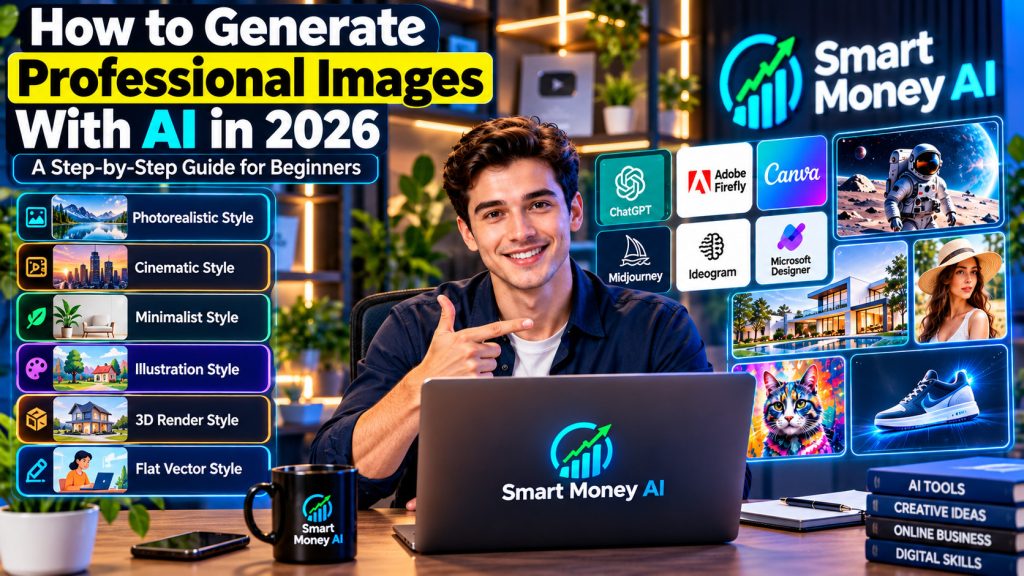
Creating professional-looking images once required photography equipment, advanced design skills, or experience with complicated editing software.
Today, artificial intelligence has made image creation more accessible.
With an AI image generator, beginners can create illustrations, marketing graphics, blog images, social media visuals, and product concepts by describing what they want in everyday language.
However, generating an attractive image is only part of the process. Professional results also require clear instructions, thoughtful composition, suitable dimensions, careful editing, and an understanding of commercial-use rights.
If you want to learn how to generate professional images with AI in 2026, this beginner-friendly guide will walk you through the entire process.
You will discover popular AI image generation tools, practical prompting techniques, common mistakes, and a simple workflow for creating useful visuals without advanced graphic design experience.
Table of Contents
1. What Is AI Image Generation?
AI image generation is the process of creating digital images using artificial intelligence.
Instead of drawing every element manually, you provide instructions describing the image you want.
These instructions are commonly called AI image prompts.
For example, you might enter:
“Create a realistic photograph of a modern home office with a wooden desk, laptop, indoor plants, and natural morning sunlight.”
An AI image generator interprets the description and produces an image based on the instructions.
Depending on the tool, you may also be able to upload a reference image, change specific objects, remove backgrounds, or generate variations of an existing design.
What Can AI Image Generators Create?
AI image generation tools can help produce:
- Blog featured images
- Social media graphics
- YouTube thumbnail concepts
- Marketing illustrations
- Website banners
- Presentation visuals
- Product mockups
- Educational illustrations
- Digital artwork
- Advertising concepts
- Infographics
- Character concepts
The quality and accuracy of the results depend on the tool, prompt, and editing process.
AI-generated images may look realistic, but they should not automatically be treated as photographs of real events.
2. Why Learn AI Image Generation in 2026?
AI image generation is becoming a useful digital skill for creators, students, freelancers, marketers, and small business owners.
Save Time on Visual Content Creation
Traditional image production may involve finding stock photography, arranging a photoshoot, or manually creating graphics.
AI tools can help produce initial visual concepts quickly.
However, reviewing and refining images still takes time.
Explore Creative Ideas
You can experiment with different lighting styles, backgrounds, camera angles, and compositions.
This makes AI useful for brainstorming designs before choosing a final direction.
Support Small Business Marketing
Businesses frequently need visuals for websites, presentations, newsletters, and promotional materials.
AI image generation can help create draft concepts and supporting graphics.
Develop a Practical Digital Skill
Learning how to describe visual ideas clearly can support careers involving content creation, marketing, design, and communication.
Create Without Advanced Drawing Skills
You do not need to be a professional illustrator to begin experimenting.
Understanding basic visual design principles will still improve your results.
3. Best AI Image Generation Tools to Explore in 2026
Several AI tools can generate images from text prompts.
AI image generators are especially useful for bloggers, YouTubers, and social media creators who need engaging visuals. To discover more useful tools for creating digital content, explore our guide to the 10 best AI tools for content creators in 2026.
Each has different features, strengths, pricing structures, and usage restrictions.
ChatGPT
ChatGPT supports image creation and editing in supported experiences.
You can explore the official ChatGPT website to create images using natural-language prompts. Describe your preferred subject, background, lighting, and composition, then request specific adjustments to improve the result.
You can describe an image conversationally and request adjustments such as changing colors, modifying backgrounds, or refining the composition.
Useful for:
- Blog featured images
- Social media graphics
- Educational illustrations
- Marketing concepts
- Image revisions
For example, you could request a professional office image and then ask to change the lighting or add a presentation screen.
Available features and usage limits may depend on your plan.
Adobe Firefly
Adobe Firefly provides generative AI capabilities for creative workflows.
You can explore the official Adobe Firefly website to experiment with AI-generated images, creative concepts, and supported image editing features. Adobe Firefly offers tools for different creative workflows, although some features may require a paid plan or generative credits.
It can help users explore visual concepts, create images, and perform supported generative editing tasks.
Useful for:
- Marketing visuals
- Creative concepts
- Design experimentation
- Image editing
- Professional creative workflows
Some features require a paid plan or generative credits.
Canva
Canva provides design tools and AI-assisted features that can help users create graphics for different platforms.
You can explore the official Canva website to create social media graphics, YouTube thumbnails, presentations, and marketing visuals. Canva combines design templates with AI-assisted features, making it useful for beginners who want to customize their images with professional layouts, text, and branding.
Its strength is combining visual generation with layouts, templates, text, and other design elements.
Useful for:
- Instagram graphics
- YouTube thumbnails
- Presentation slides
- Posters
- Website banners
AI features, usage limits, and licensing terms can vary.
Midjourney
Midjourney is known for generating stylized, artistic, and visually detailed images.
You can explore the official Midjourney website to create artistic illustrations, cinematic scenes, and detailed visual concepts using AI prompts. Midjourney offers creative controls for experimenting with different styles and compositions. Review its current subscription plans and usage terms before getting started.
Users can experiment with creative prompts, composition, and visual styles.
Useful for:
- Concept artwork
- Creative illustrations
- Cinematic images
- Fantasy environments
- Artistic compositions
Check the current subscription requirements and usage terms before choosing it.
Ideogram
Ideogram is an AI image generation platform that can be useful when creating visuals containing typography and graphic-design elements.
You can explore the official Ideogram website to create AI-generated posters, promotional graphics, and visual designs featuring typography. Ideogram is particularly useful for experimenting with text-focused image concepts, although you should always check the spelling and accuracy of generated text.
Useful for:
- Posters
- Promotional graphics
- Text-focused visual concepts
- Branding experiments
- Social media designs
Always inspect generated text carefully, because AI tools can still introduce spelling or layout errors.
Microsoft Designer
Microsoft Designer offers AI-assisted graphic creation capabilities.
You can explore the official Microsoft Designer website to create AI-assisted graphics, social media visuals, invitations, and promotional designs. Microsoft Designer provides creative tools for beginners who want to experiment with professional-looking graphics without advanced design experience.
It can help users create visual concepts and adapt designs for different communication needs.
Useful for:
- Social media content
- Invitations
- Promotional designs
- Everyday graphics
Review the available features and account requirements before using it.
Which AI Image Generator Should Beginners Choose?
There is no single best tool for everyone.
If you are just starting and want to explore AI without immediately paying for multiple subscriptions, check out our guide to the 10 best free AI tools for students and professionals in 2026. It introduces useful AI tools that beginners can explore for learning, creativity, and everyday digital tasks.
Choose based on your needs:
| Tool | Good Starting Use |
|---|---|
| ChatGPT | Conversational image creation and revisions |
| Adobe Firefly | Creative design workflows |
| Canva | Combining images with templates and layouts |
| Midjourney | Artistic and cinematic concepts |
| Ideogram | Graphics involving text and typography |
| Microsoft Designer | Everyday promotional graphics |
Beginner tip: Start with one image generator and learn its features before paying for multiple subscriptions.
4. Step 1: Decide What Type of Image You Need
Before opening an AI image generator, identify the purpose of your image.
Ask yourself:
- Where will the image appear?
- Who is the intended audience?
- What message should it communicate?
- Should it look realistic or illustrated?
- Does it need space for text?
- What dimensions are required?
For example, a blog featured image may need a wide composition, while an Instagram Story generally requires a vertical layout.
Example: Blog Featured Image
Suppose you are creating an article about working from home.
Your image could include:
- A professional working at a laptop
- A clean home office
- Natural lighting
- A modern desk
- Relevant technology elements
- Space for a headline
Planning these details first makes the prompt easier to write.
5. Step 2: Choose the Correct Image Dimensions
Image dimensions affect how your visual appears on websites and social media platforms.
An attractive image can lose its impact if important elements are cropped.
Common Aspect Ratios
| Aspect Ratio | Typical Use |
|---|---|
| 16:9 | Website banners, video thumbnails, widescreen graphics |
| 1:1 | Square social media graphics |
| 4:5 | Portrait social media posts |
| 9:16 | Stories, Reels, Shorts, vertical visuals |
| 3:2 | Photography-style compositions |
These are common formats rather than universal requirements.
Always check the latest specifications for the platform where you plan to publish.
Example
For a blog featured image, you might request:
“Create a professional 16:9 widescreen image suitable for a technology blog.”
For a vertical promotional graphic:
“Create a 9:16 portrait composition with the main subject centered and clear space for a headline.”
Choosing the right format early reduces unnecessary editing later.
6. Step 3: Write a Clear AI Image Prompt
Prompt writing is one of the most important skills in AI image generation.
Learning how to write effective AI prompts can also improve your image generation results. If you want to develop stronger prompting skills, read our beginner-friendly guide on how to write better AI prompts in 2026, which explains practical techniques for giving AI tools clearer instructions.
A vague prompt gives the AI considerable freedom to interpret your request.
A detailed prompt provides more direction.
Weak Prompt Example
“Create a business image.”
This does not explain the subject, environment, lighting, or style.
Improved Prompt Example
“Create a realistic image of a friendly American business professional working on a laptop in a modern home office. Include a clean desk, indoor plants, natural window lighting, and a professional technology atmosphere. Use a 16:9 widescreen composition with realistic details and space for a headline.”
The second prompt gives the AI more useful information.
A Simple AI Image Prompt Formula
Use this structure:
Subject + Action + Environment + Visual Style + Lighting + Composition + Technical Requirements
Let’s understand each component.
Subject: What should appear in the image?
Action: What is the subject doing?
Environment: Where does the scene take place?
Visual Style: Should the image be realistic, cinematic, illustrated, or minimalist?
Lighting: Should the lighting be natural, bright, soft, or dramatic?
Composition: How should the elements be arranged?
Technical Requirements: What aspect ratio, resolution, or output format is needed?
Complete Example
“Create a photorealistic image of a professional woman using a laptop in a modern creative studio. She is reviewing digital marketing graphics on a large monitor. Include subtle blue accent lighting, indoor plants, and a clean workspace. Use a medium camera angle, realistic skin texture, sharp details, and a 16:9 widescreen composition. Leave space on the left for a headline.”
This formula works for many beginner projects.
7. Step 4: Select the Right Visual Style
Visual style influences how people interpret an image.
Different projects require different approaches.
Photorealistic Style
Photorealistic images aim to resemble real photography.
They can be useful for fictional lifestyle scenes, conceptual business imagery, and visual storytelling.
Avoid presenting synthetic scenes as documentary evidence.
Cinematic Style
Cinematic images often use dramatic lighting, depth, and carefully arranged compositions.
They can work well for promotional graphics and creative concepts.
Minimalist Style
Minimalist designs use fewer elements, clean backgrounds, and simple compositions.
They are useful when clarity is more important than visual complexity.
Illustration Style
Illustrations can explain concepts without attempting to look like photographs.
They are useful for educational materials, blog graphics, and creative storytelling.
3D Render Style
Three-dimensional renders can depict products, objects, and conceptual environments.
They are often used in marketing concepts and product presentations.
Flat Vector Style
Flat vector-style graphics use simple shapes and colors.
They are useful for icons, diagrams, and educational graphics.
Professional tip: Choose a visual style that matches your website, brand, and intended audience.
8. Step 5: Improve Lighting, Camera Angles, and Composition
A professional-looking image depends on more than the subject.
Lighting and composition can significantly influence the result.
Lighting Techniques
Natural window lighting: Creates a bright, realistic atmosphere.
Soft studio lighting: Helps produce balanced portraits and product concepts.
Golden-hour lighting: Adds warm tones and a relaxed atmosphere.
Cinematic lighting: Creates contrast and visual drama.
Camera Angles
Eye-level angle: Useful for natural portraits and professional scenes.
Low angle: Can make buildings and objects appear more prominent.
High angle: Useful for desks, products, and organized workspaces.
Over-the-shoulder angle: Useful for showing someone interacting with technology.
Composition Techniques
Rule of thirds: Position important subjects away from the exact center when appropriate.
Negative space: Leave uncluttered areas for text or graphic elements.
Leading lines: Use visual lines to guide attention toward the main subject.
Background separation: Keep the main subject visually distinct from the surroundings.
Example Prompt Addition
“Use soft studio lighting, an eye-level camera angle, a shallow depth of field, and balanced composition. Leave clear negative space on the right for promotional text.”
Small changes to these instructions can produce noticeably different results.
9. Step 6: Generate Your First AI Image
Once your prompt is ready, begin the generation process.
Beginner Workflow
- Open your chosen AI image generator.
- Sign in if required.
- Select an image creation feature.
- Enter your prompt.
- Choose the available aspect ratio or image dimensions.
- Generate the image.
- Review the result.
- Save the version you want to improve.
What Should You Check?
Look closely at:
- Faces and expressions
- Hands and fingers
- Clothing details
- Objects and furniture
- Text and spelling
- Lighting consistency
- Background elements
- Overall composition
AI-generated images can contain unexpected details, especially in complicated scenes.
Do not assume that a visually impressive image is technically accurate.
10. Step 7: Refine Your AI Image With Follow-Up Prompts
Your first generated image does not have to be the final version.
Image refinement is an important part of professional AI workflows.
Instead of generating an entirely new image every time, use editing features when available.
Example 1: Change the Background
“Keep the main subject unchanged. Replace the background with a modern office featuring warm lighting and indoor plants.”
Example 2: Improve Lighting
“Preserve the composition and subject. Make the lighting brighter and more natural.”
Example 3: Change Clothing Color
“Keep the same person, pose, and background. Change the jacket color to navy blue.”
Example 4: Add a Relevant Object
“Keep the existing scene unchanged. Add a realistic podcast microphone on the desk.”
Example 5: Improve Text Placement
“Keep the main image unchanged. Move the headline to the upper-left corner and improve readability.”
Why Specific Editing Instructions Matter
Broad instructions such as “make it better” may produce unpredictable changes.
A specific request helps the tool understand which elements should change and which should remain.
However, AI editing tools may not perfectly preserve every detail.
Always compare the revised image with the original.
11. Step 8: Create Consistent Images for Your Brand
If you publish content regularly, visual consistency helps readers recognize your work.
For example, a technology website may use:
- A consistent color palette
- Similar lighting
- Repeated typography styles
- A recognizable logo
- Consistent image proportions
- Related visual elements
Create a Simple Brand Style Guide
Document your preferred:
Colors: For example, dark navy, white, and cyan.
Typography: Choose readable headline and body fonts.
Visual Style: Modern, professional, and technology-focused.
Image Ratio: Use a consistent format for similar content types.
Logo Placement: Choose locations that remain visible without distracting from the image.
Example Brand Prompt
“Create a professional technology blog featured image using a dark navy and cyan color palette, realistic studio lighting, modern digital panels, and a clean 16:9 composition. Leave space for a small brand logo and readable headline.”
For accurate branding, it may be better to add your official logo manually in a design editor rather than relying on AI to reproduce it.
This helps avoid misspelled brand names or distorted logo details.
12. Step 9: Add Professional Text and Graphics
Many images need additional elements such as headlines, labels, icons, or logos.
AI image generators can sometimes create readable text, but results are not always reliable.
For professional publishing, consider combining AI-generated backgrounds with a design editor.
A Practical Workflow
- Generate the main image.
- Download the image.
- Open it in a suitable design editor.
- Add the headline using a readable font.
- Insert your official logo.
- Add relevant icons or supporting graphics.
- Check spacing and alignment.
- Export the completed design.
Keep Headlines Readable
Avoid placing text over complicated backgrounds.
Use strong contrast between the headline and background.
Do not overload the image with unnecessary labels.
Check Mobile Readability
A design that looks excellent on a desktop monitor may be difficult to read on a phone.
Preview the image at a smaller size before publishing.
13. Step 10: Download and Optimize Your AI Image
After creating the final design, choose an appropriate file format.
JPG or JPEG
Useful for photographic images and many website graphics.
JPEG compression can help reduce file size.
PNG
Useful for graphics requiring transparency or lossless image storage.
PNG files may be larger than JPEG files.
WebP
Useful for web images because it can offer efficient compression.
Browser and platform support should be checked when choosing an export format.
SVG
Useful for certain scalable graphics, such as vector icons and logos.
An AI-generated raster image does not automatically become a true vector graphic simply by saving it with an SVG extension.
Image Optimization Tips
Before uploading an image to your website:
- Choose suitable dimensions.
- Compress large files.
- Avoid unnecessary metadata.
- Use a descriptive filename.
- Write meaningful alternative text.
- Preview the image on mobile devices.
Example
Instead of naming your file:
image123.jpg
Use a descriptive filename such as:
professional-ai-image-generation-guide-2026.jpg
For a blog, use image dimensions that suit the layout rather than uploading unnecessarily large files.
14. Ten Practical AI Image Prompts for Beginners
The following examples demonstrate how different prompts can support real projects.
Prompt 1: Professional Blog Featured Image
“Create a photorealistic 16:9 image of a business professional working on a laptop in a modern home office. Include soft natural lighting, indoor plants, a clean desk, and subtle technology elements. Leave space on the left for a blog headline.”
Prompt 2: YouTube Thumbnail Concept
“Create a high-contrast 16:9 technology thumbnail featuring a friendly presenter, a laptop, colorful AI interface graphics, and dramatic studio lighting. Leave a clean area for a short headline. Use a modern professional visual style.”
Prompt 3: Instagram Promotional Graphic
“Create a stylish 4:5 promotional image featuring a premium reusable water bottle on a minimalist desk. Use soft studio lighting, realistic reflections, and a clean background with space for product information.”
Prompt 4: Website Hero Banner
“Create a modern 16:9 website hero background featuring a bright digital workspace, abstract AI-inspired interface elements, and a professional technology atmosphere. Keep the left side uncluttered for website text.”
Prompt 5: Product Mockup
“Create a realistic product mockup of a plain notebook on a wooden desk with a pen and coffee cup. Use natural window lighting, accurate proportions, and a clean commercial photography style.”
Prompt 6: Educational Illustration
“Create a clear flat-style illustration explaining cloud storage. Show a laptop, smartphone, tablet, and central cloud icon connected with simple lines. Use a clean white background and a professional blue color palette.”
Prompt 7: Digital Marketing Visual
“Create a realistic image of a small business owner reviewing digital marketing charts on a laptop. Include a modern workspace, balanced lighting, and subtle business-related graphics.”
Prompt 8: Professional Presentation Background
“Create a minimalist widescreen presentation background with subtle geometric shapes, a navy and light-blue color palette, and generous empty space for presentation text.”
Prompt 9: Podcast Studio Image
“Create a photorealistic image of a modern podcast studio with two microphones, headphones, acoustic panels, warm lighting, and a professional recording desk. Use a cinematic 16:9 composition.”
Prompt 10: AI Technology Concept
“Create a futuristic but professional illustration representing artificial intelligence assisting people with everyday digital tasks. Include a laptop, documents, charts, and subtle holographic elements. Use realistic proportions and a clean composition.”
Important: These prompts are starting points. Adjust the details to match your audience, platform, and project requirements.
15. How to Create AI Images for Different Platforms
Different publishing platforms require different visual approaches.
Blog and Website Images
Focus on:
- Relevant subjects
- Clear composition
- Fast loading
- Consistent branding
- Descriptive alternative text
Avoid images that distract from the article’s main topic.
YouTube Thumbnails
Focus on:
- A clear main subject
- High contrast
- Limited headline text
- Readability at small sizes
- Accurate representation of the video
Avoid misleading thumbnails that promise something the video does not deliver.
Instagram Graphics
Focus on:
- Suitable dimensions
- Clear visual hierarchy
- Readable text
- Strong product or subject visibility
- Consistent visual identity
Business Presentations
Focus on:
- Professional appearance
- Simple layouts
- Appropriate illustrations
- Clear communication
- Visual consistency
AI-generated illustrations can make business presentations more engaging when they support the message of each slide. To learn how to organize slides, choose professional layouts, and communicate ideas clearly, read our guide on how to create professional presentations in 2026.
Product Marketing
Focus on:
- Accurate product appearance
- Realistic proportions
- Clear labeling
- Truthful presentation
Do not use AI-generated product imagery to misrepresent the appearance or capabilities of an item being sold.
16. Can You Use AI-Generated Images Commercially?
Commercial usage is an important consideration for creators and businesses.
The answer depends on the image generation platform, its terms, the content involved, and applicable laws.
Review the Tool’s Usage Terms
Different AI platforms have different rules.
Some may permit commercial use under certain conditions, while others may restrict specific activities or features.
Do not assume that every generated image is automatically cleared for commercial use.
Understand Copyright Limitations
Copyright protection for AI-generated material can depend on the amount and nature of human creative contribution and the applicable jurisdiction.
In the United States, purely AI-generated material without sufficient human authorship may not qualify for copyright protection.
Human-created selection, arrangement, or modifications may raise different considerations.
Avoid Unauthorized Branding
Do not place another company’s trademark or logo into promotional materials in ways that suggest an endorsement or partnership that does not exist.
Respect Personal Identity and Privacy
Avoid creating misleading images of identifiable people without appropriate permission.
Be especially careful when an image could imply that a real person participated in an event, endorsed a product, or made a statement.
Keep Records
For commercial projects, consider retaining:
- The prompt
- The generated image
- Relevant license information
- Editing records
- Client approvals
- Permission documentation when necessary
This section provides general educational information rather than legal advice.
17. Common AI Image Generation Mistakes to Avoid
Beginners often make similar mistakes when learning AI image generation.
Mistake 1: Writing Extremely Vague Prompts
A short prompt may not communicate your intended result.
Solution: Describe the subject, environment, style, lighting, and composition.
Mistake 2: Adding Too Many Unrelated Elements
A crowded prompt can produce a confusing image.
Solution: Focus on the most important visual elements.
Mistake 3: Ignoring Image Dimensions
The wrong aspect ratio can lead to unwanted cropping.
Solution: Choose dimensions based on the publishing platform.
Mistake 4: Trusting AI-Generated Text Without Checking
AI image generators may produce spelling errors or distorted letters.
Solution: Review all text and add critical wording manually when necessary.
Mistake 5: Publishing Without Reviewing Details
Generated images can contain unusual objects, inaccurate symbols, or inconsistent anatomy.
Solution: Inspect the full image before publishing.
Mistake 6: Using Inconsistent Brand Styles
Unrelated visual styles can make a website or social media profile appear disorganized.
Solution: Develop simple brand guidelines.
Mistake 7: Ignoring Commercial-Use Rules
Usage permissions vary by platform and project.
Solution: Review current licensing terms before commercial publication.
Mistake 8: Uploading Unnecessarily Large Files
Oversized images can affect website loading performance.
Solution: Resize and compress images appropriately.
Mistake 9: Overediting a Good Image
Repeated changes may introduce new errors or alter important details.
Solution: Save versions and make specific edits.
Mistake 10: Treating AI Images as Automatically Accurate
An AI image can look convincing while depicting something incorrectly.
Solution: Verify important visual information, particularly in educational, technical, or commercial contexts.
18. A Seven-Day AI Image Generation Learning Plan
You can build foundational skills through short daily exercises.
Day 1: Understand AI Image Generation
Learn how text prompts influence generated images.
Explore the interface of one AI image generator.
Practice: Create three simple images using different subjects.
Day 2: Practice Prompt Writing
Experiment with subject descriptions, environments, and visual styles.
Practice: Generate the same scene using three different prompts.
Day 3: Explore Lighting and Composition
Learn how camera angles, lighting, and background details influence results.
Practice: Create three variations of one professional workspace image.
Day 4: Learn Image Editing
Practice modifying backgrounds, colors, and objects.
Practice: Generate an image and make two targeted revisions.
Day 5: Create Social Media Graphics
Learn how aspect ratios and headline placement affect usability.
Practice: Create one square graphic and one vertical graphic.
Day 6: Build a Branded Visual
Choose a consistent color palette and design style.
Practice: Create a blog featured image and add your logo using a design editor.
Day 7: Complete a Mini Portfolio
Select your best images from the week.
Organize them into a simple collection.
Practice: Prepare three finished visuals:
- A blog featured image
- A social media graphic
- A presentation illustration
At the end of the week, review your work and identify areas to improve.
19. Frequently Asked Questions About AI Image Generation
Can beginners generate professional images with AI?
Yes. Beginners can create polished visual concepts using AI image generators. Learning prompt writing, composition, and editing can help improve the results.
Do I need graphic design experience?
No advanced design experience is required to begin. However, understanding typography, color, spacing, and composition is useful.
What is the best AI image generator for beginners?
The best choice depends on your needs, budget, and preferred workflow. ChatGPT, Canva, Adobe Firefly, Microsoft Designer, Ideogram, and Midjourney are options worth exploring.
Can I create AI images for free?
Some services offer free access, trials, or limited generation allowances. These can change, so check current plans before choosing a tool.
Can I use AI images on my website?
Generally, you can use images when the platform’s terms and applicable laws permit your intended use. Review licensing, privacy, and intellectual property considerations.
Can AI generate YouTube thumbnails?
Yes. AI can help create thumbnail backgrounds, illustrations, and visual concepts. You should review text, branding, and accuracy before publishing.
How do I make AI images look realistic?
Use clear prompts describing lighting, camera angle, materials, proportions, and the environment. Review and refine the output rather than relying on the first result.
Why does AI sometimes generate incorrect text?
AI image generation systems may struggle with precise lettering, especially in complicated layouts. For important text, use a design editor when possible.
What image format should I use for my blog?
JPEG and WebP are common choices for photographic web images. PNG can be useful for graphics requiring transparency or lossless quality.
Can I sell AI-generated images?
Commercial sales may be possible, but you must review the platform’s terms, marketplace rules, intellectual property rights, and applicable laws. Creating an image with AI does not automatically guarantee exclusive ownership or legal protection.
20. Final Thoughts
Learning how to generate professional images with AI in 2026 can be a useful skill for anyone creating digital content.
AI image generators make it easier to explore creative ideas, build visual concepts, and prepare graphics for websites, presentations, and social media.
However, professional results require more than entering a short prompt.
You need to understand your audience, choose suitable dimensions, write clear instructions, refine the image, check important details, and follow relevant usage rules.
Start with one AI image generator and practice regularly.
As your skills improve, develop a consistent visual style and create a small portfolio of your best work.
Remember that AI is a creative assistant. Your judgment, originality, and attention to detail remain essential.
Editor’s Note
This article is intended for educational purposes. AI image generation features, pricing, commercial-use policies, and licensing conditions may change over time.
Always verify current platform terms before using generated images for commercial projects. AI-generated visuals should not be used to mislead audiences or misrepresent real people, products, or events.
Your Next Step
Choose one AI image generator and create a professional 16:9 image using the prompt formula from this guide.
Generate your first version, make two specific improvements, and save the final result.
This simple exercise will help you begin developing practical AI image generation skills.