
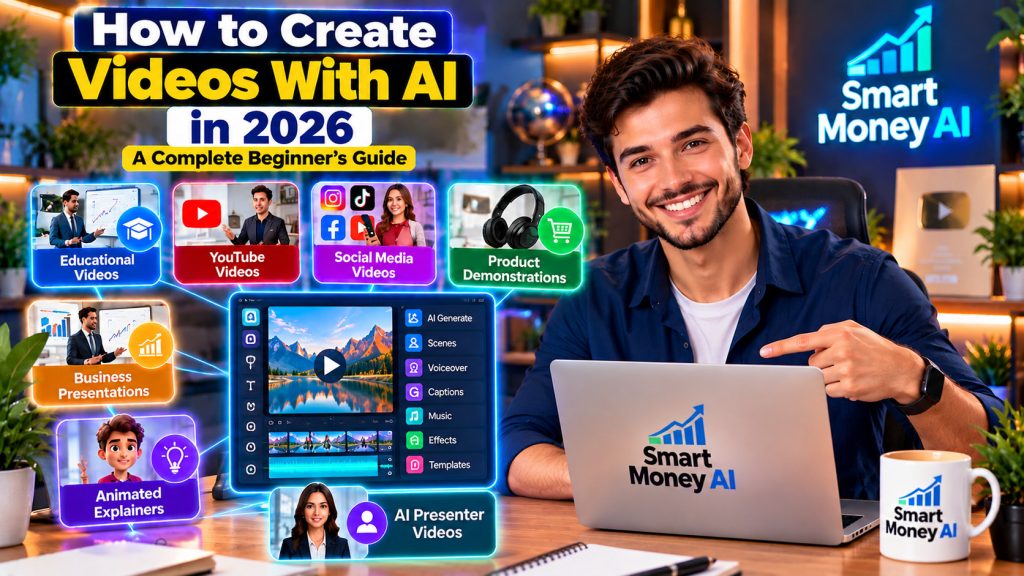
Creating videos once required expensive cameras, professional editing software, recording equipment, and considerable technical experience. Today, artificial intelligence makes video production more accessible to beginners, small business owners, educators, and content creators.
AI video tools can help generate video clips, create scripts, develop visual scenes, produce voiceovers, add captions, and simplify editing. Some platforms can even transform written instructions or existing images into short videos.
However, creating a useful AI video involves more than entering a prompt and downloading the result. Successful videos still require planning, clear storytelling, quality checks, and an understanding of copyright and platform policies.
In this beginner-friendly guide, you’ll learn how to create videos with AI in 2026, explore practical tools, and follow a step-by-step workflow for producing professional-looking content.
Table of Contents
1. What Is AI Video Generation?
AI video generation is the process of using artificial intelligence to create or modify video content.
Depending on the software, AI can generate moving scenes from written descriptions, animate still images, create digital presenters, produce narration, or assist with traditional editing tasks.
For example, a small business owner might enter a description of a product demonstration and use an AI tool to generate a short promotional clip.
A YouTube creator might use AI to prepare a script, generate supporting visuals, create narration, and assemble a finished educational video.
Common Types of AI Video Creation
Text-to-video: Creates video clips from written descriptions.
Image-to-video: Adds motion to an existing photograph or illustration.
AI avatar videos: Uses a digital presenter to deliver a script.
AI-assisted editing: Helps with captions, audio cleanup, clip selection, and other editing tasks.
Script-to-video: Converts a written script into a sequence of scenes, often using templates, generated visuals, or stock footage.
These approaches serve different purposes, so beginners should choose a workflow based on the type of content they want to produce.
2. Why Are AI Video Tools Useful for Beginners?
AI video tools can reduce some of the technical barriers involved in content creation.
Lower Equipment Requirements
You can create certain types of videos without owning a professional camera, lighting system, or recording studio.
Faster Production
AI can assist with time-consuming activities such as drafting scripts, generating visual ideas, preparing captions, and organizing scenes.
More Creative Options
Beginners can experiment with different backgrounds, camera movements, animation styles, and visual concepts.
Support for Small Businesses
Businesses can use AI-assisted videos for product explanations, tutorials, social media posts, and customer education.
Easier Content Repurposing
A longer educational video can provide material for shorter clips, summaries, and social media content.
Important: AI does not automatically guarantee high-quality results. Human review remains essential.
3. What Types of Videos Can You Create With AI?
Before choosing a tool, decide what kind of video you want to make.
Educational Videos
Explain concepts, demonstrate software, or teach practical skills.
YouTube Videos
Create tutorials, explainers, product comparisons, or informational videos.
Social Media Videos
Produce short clips designed for vertical platforms and mobile viewing.
Product Demonstrations
Show how a product works or explain its benefits.
AI-generated videos can also support digital marketing by helping businesses explain products, introduce services, and create engaging promotional content. To understand how artificial intelligence supports broader marketing activities, explore our guide on How to Use AI for Digital Marketing in 2026: A Beginner’s Step-by-Step Guide.
Business Presentations
Turn written information into visual presentations with narration.
Animated Explainers
Use animated characters, illustrations, and motion graphics to explain complex topics.
AI Presenter Videos
Create videos featuring a digital presenter reading a prepared script.
Each format requires different planning, visuals, and editing techniques.
4. Step 1: Define Your Video’s Purpose
The first step in learning how to create videos with AI is identifying the purpose of your video.
Ask yourself:
- Who is the intended audience?
- What should viewers learn or understand?
- Where will the video be published?
- How long should the video be?
- What action should viewers take afterward?
For example, suppose you want to create a beginner-friendly video explaining how AI tools can help organize everyday office tasks.
Your objective might be:
Audience: Beginners interested in digital productivity.
Topic: Five practical uses of AI in office work.
Format: Educational YouTube video.
Length: Approximately five minutes.
Desired outcome: Help viewers understand useful applications and limitations.
A clear objective makes the remaining production steps easier.
5. Step 2: Choose the Right Video Format
Different platforms favor different video formats.
Horizontal Videos — 16:9
A widescreen format commonly used for YouTube tutorials, educational videos, and desktop presentations.
Vertical Videos — 9:16
A portrait format commonly used for YouTube Shorts, Instagram Reels, and TikTok.
Square Videos — 1:1
A format sometimes used for social media posts and advertisements.
Choosing the correct aspect ratio before generating scenes can reduce cropping and editing problems.
Also consider the viewing experience.
A video intended for smartphones may need larger text, simpler graphics, and more prominent subjects than a desktop tutorial.
6. Step 3: Write a Clear Video Script
A good script provides structure and helps prevent unnecessary scenes.
AI writing assistants can help brainstorm topics, create outlines, and improve explanations.
If you’re new to using AI for scriptwriting, explore our guide on How to Use ChatGPT for Beginners: A Step-by-Step Guide. It explains how beginners can use ChatGPT to write effective prompts, organize ideas, and generate useful drafts that can support video production.
However, you should review generated scripts for factual accuracy, originality, and clarity.
A Simple Video Script Structure
Introduction: Introduce the topic and explain why it matters.
Main content: Present information in a logical sequence.
Examples: Demonstrate the ideas with practical situations.
Summary: Review the most important points.
Call to action: Suggest an appropriate next step for viewers.
Example Script Prompt
“Write a beginner-friendly script for a three-minute educational video about five ways AI can help small businesses organize daily tasks. Use clear American English, a helpful tone, practical examples, and a short conclusion. Avoid exaggerated claims.”
After generating the script, read it aloud or use a preview voice to check its pacing.
Remove repetitive explanations and confirm important facts before proceeding.
7. Step 4: Create a Scene-by-Scene Storyboard
A storyboard describes what viewers will see during each part of the video.
You do not need professional drawing skills to create one.
A simple table can organize your scenes.
| Scene | Visual | Narration | Approximate Duration |
|---|---|---|---|
| 1 | Modern office introduction | Introduce the topic | 10 seconds |
| 2 | AI productivity dashboard | Explain the first benefit | 20 seconds |
| 3 | Digital documents and spreadsheets | Demonstrate a workflow | 30 seconds |
| 4 | Business owner reviewing results | Discuss practical applications | 20 seconds |
| 5 | Summary graphics | Recap key lessons | 15 seconds |
These durations are examples rather than fixed rules.
A storyboard helps you maintain consistency and identify which scenes need AI-generated visuals, screen recordings, or traditional footage.
8. Step 5: Choose AI Video Generation Tools
Several platforms offer AI video creation or AI-assisted editing features.
Their capabilities, pricing, availability, generation limits, and commercial-use terms may change.
Choosing the right AI tools can make content production more manageable. For a broader introduction to tools that support creative workflows, explore our guide on 10 Best AI Tools for Content Creators in 2026: A Beginner’s Guide. It introduces useful options for beginners interested in creating digital content.
Always check current features before selecting a paid plan.
Runway
Runway offers creative AI video tools that can assist with generating and modifying visual content.
It may be useful for creators interested in cinematic scenes, visual experiments, and AI-assisted production.
Beginners interested in creating cinematic AI-generated videos can explore the official Runway website to learn about its text-to-video, image-to-video, and AI-assisted creative tools. Review the available features, pricing, and usage rights before choosing a plan.
Pika
Pika focuses on AI-generated video effects and creative visual transformations.
Beginners can explore it for short-form visual content and experimentation.
Beginners interested in creating short AI-generated videos, experimenting with visual effects, and transforming creative ideas into animated clips can explore the official Pika website. Review the available video generation features, pricing plans, and commercial usage terms before choosing a subscription.
Synthesia
Synthesia specializes in AI presenter videos.
It can be useful for training materials, educational presentations, and business communications.
Synthesia is an AI video creation platform that helps users produce videos featuring digital presenters without traditional filming equipment. Beginners can explore the official Synthesia website to learn about AI avatars, text-to-video presentations, multilingual narration, and business training videos. Review the available features, pricing, and commercial usage terms before selecting a plan.
HeyGen
HeyGen provides AI avatar and video creation features, including tools designed for presenter-style content.
HeyGen is an AI video creation platform that helps users produce videos featuring digital presenters, AI avatars, and multilingual narration. Beginners can explore the official HeyGen website to learn about its video creation features, avatar customization options, and business presentation tools. Review the available plans and commercial usage terms before subscribing.
Canva
Canva offers design and video-editing features that can help beginners combine graphics, templates, text, and media.
Canva provides beginner-friendly design and video editing tools that can help creators produce educational videos, social media content, presentations, and promotional materials. Beginners can explore the official Canva website to learn about video templates, animations, graphics, and available AI-assisted features. Review the current features, pricing, and commercial usage terms before choosing a plan.
Available AI capabilities depend on the product and plan.
CapCut
CapCut provides video editing tools, including features for captions, effects, and other production tasks.
CapCut is a video editing platform that helps beginners create and edit videos for YouTube, social media, and other digital platforms. You can explore the official CapCut website to learn about video editing, automatic captions, transitions, visual effects, and available AI-assisted features. Review its current features, pricing, and commercial usage terms before selecting a plan.
Which Tool Should Beginners Choose?
Choose based on your project:
- Cinematic visual clips: Explore text-to-video and image-to-video platforms.
- Talking presenter videos: Consider AI avatar platforms.
- Educational videos with graphics: Consider design and editing tools.
- Short social media videos: Look for tools with vertical video and caption support.
You do not need to subscribe to every platform.
Start with one generation tool and one editor, then expand only when your workflow requires additional capabilities.
9. Step 6: Learn How to Write Effective AI Video Prompts
A video prompt tells an AI system what kind of scene to generate.
Clear prompts generally produce more predictable results than vague instructions.
Writing effective prompts is an important skill for AI video creation. If you want to improve your prompting techniques, read our guide on How to Write Better AI Prompts in 2026: 12 Practical Techniques for Beginners. It explains how to write clearer instructions, structure prompts, and generate more useful AI responses.
Essential Elements of a Video Prompt
Subject: Who or what appears in the scene?
Setting: Where does the action take place?
Action: What should happen?
Camera movement: Should the camera remain still, zoom, or move?
Lighting: What atmosphere should the scene have?
Visual style: Should the result look realistic, animated, or cinematic?
Aspect ratio: Should the output be horizontal or vertical?
Duration: How long should the scene last?
Example AI Video Prompt
“Create a realistic eight-second video of a professional working at a modern home office desk. The person reviews a digital productivity dashboard on a laptop. Soft natural daylight enters through a window. Use a medium camera shot with a gentle cinematic push-in, realistic movements, clean office surroundings, and a professional educational-video atmosphere. Horizontal 16:9 composition.”
This prompt gives the video generator a clear subject, setting, action, camera direction, and visual style.
Avoid Overloading Prompts
Adding too many unrelated actions can make a scene difficult for the AI to generate consistently.
For better results, use shorter prompts with a clear primary action.
Complex scenes may work better when divided into separate clips.
10. Step 7: Generate Your First AI Video Clip
Once your prompt is ready, open your selected AI video platform.
A typical workflow involves:
- Select the text-to-video feature.
- Enter your video prompt.
- Choose an available aspect ratio.
- Select the duration or generation settings.
- Generate a preview.
- Review the result.
- Revise the prompt if necessary.
- Export the usable clip.
What Should You Check?
Look for:
- Natural movement
- Consistent objects and backgrounds
- Correct framing
- Clear visual storytelling
- Unexpected distortions
- Unwanted text or symbols
AI video generation is not always accurate on the first attempt.
You may need to adjust your prompt or regenerate individual scenes.
11. Step 8: Turn Images Into Videos With AI
Image-to-video generation uses an existing image as the visual starting point.
This approach can be useful when you want more control over the appearance of a scene.
For example, you might create an illustration of a modern technology workspace and then animate it with subtle camera movement.
Beginner Workflow
- Prepare a suitable image.
- Upload it to an image-to-video tool.
- Describe the intended motion.
- Select available output settings.
- Generate the clip.
- Review visual consistency.
Example Motion Prompt
“Animate this office scene with a slow cinematic camera movement toward the desk. Add subtle natural movements to the background elements while preserving the original composition, lighting, and overall visual appearance.”
When using photographs of real people, obtain appropriate permission and avoid creating misleading representations.
12. Step 9: Maintain Character and Scene Consistency
Character consistency is important when the same presenter appears across multiple scenes.
Without careful planning, AI-generated videos may show changes in clothing, facial features, lighting, or background details.
Tips for Better Consistency
Use reference images: Where supported, provide an approved visual reference.
Keep descriptions consistent: Reuse the same character and environment details.
Avoid unnecessary changes: Do not change clothing, lighting, and camera style between every scene.
Generate related scenes together: Use consistent settings where possible.
Review each clip: Check continuity before assembling the final video.
Some platforms provide reference-based generation or other consistency features.
However, no tool should be assumed to preserve every visual detail perfectly.
13. Step 10: Create an AI Voiceover
Narration helps explain the video’s content.
You can record your own voice or use a text-to-speech tool.
What Makes a Good Voiceover?
A useful voiceover should have:
- Clear pronunciation
- Natural pacing
- Appropriate pauses
- Consistent volume
- A tone that suits the audience
For a US-focused educational video, you might select a clear American English voice.
Voiceover Workflow
- Finalize the narration script.
- Choose a suitable voice.
- Generate a short preview.
- Check pronunciation and pacing.
- Correct awkward sentences.
- Export the narration.
- Match the audio to your video scenes.
Important: Use voices that you own or are authorized to use. Do not clone or imitate a real person’s voice without appropriate permission.
14. Step 11: Add Captions and On-Screen Text
Captions make videos easier to follow, particularly when viewers watch without sound.
Many video editors provide automatic caption generation.
However, automatically generated captions can contain errors.
Caption Best Practices
Use readable fonts and sufficient contrast.
Keep text away from important visual elements.
Avoid placing too many words on the screen simultaneously.
Check spelling, punctuation, and timing.
Make sure captions match the spoken narration.
For educational videos, short labels and diagrams can help reinforce important ideas.
15. Step 12: Edit and Assemble Your Video
AI-generated clips usually need additional editing before publication.
Editing helps create a consistent viewing experience.
Basic Editing Workflow
Import your clips: Add all generated scenes to the editor.
Arrange the sequence: Follow your storyboard.
Add narration: Match the spoken explanations to the relevant scenes.
Trim unnecessary footage: Remove pauses or visuals that do not support the topic.
Add transitions: Use simple transitions where appropriate.
Insert graphics: Add headings, labels, and helpful diagrams.
Review audio levels: Ensure narration remains clear.
Export a preview: Watch the entire video before finalizing it.
Should You Use Background Music?
Background music can improve the atmosphere, but it should not overpower narration.
Use music that you are licensed to include in your video.
A simple, well-edited video is often more effective than one overloaded with effects.
16. Step 13: Create Longer Videos With AI
Many AI video generators are designed primarily for shorter clips, although some platforms support longer or more automated video production workflows.
For longer educational videos, a scene-based approach often provides better control.
Example: Creating a Ten-Minute Educational Video
Part 1: Introduction and overview
Part 2: First key concept
Part 3: Practical demonstration
Part 4: Additional examples
Part 5: Common mistakes
Part 6: Summary and conclusion
Each part can contain multiple scenes.
You can then assemble the sections into a complete video using an editor.
Why Use Multiple Scenes?
This approach makes it easier to:
- Correct individual mistakes
- Maintain visual consistency
- Adjust pacing
- Replace weak footage
- Improve the final structure
Even when a platform supports longer outputs, review the result carefully before publishing.
17. Step 14: Create AI Videos for YouTube
YouTube is a popular platform for educational and informational videos.
AI tools can support production, but creators remain responsible for the quality and originality of their content.
Focus on Viewer Value
A useful video should teach something, answer a question, demonstrate a process, or provide meaningful entertainment.
Avoid producing large numbers of nearly identical videos that offer little original value.
Add Your Own Contribution
You can improve AI-assisted videos through:
- Original research
- Clear explanations
- Practical demonstrations
- Thoughtful editing
- Accurate examples
- Useful commentary
Prepare the Video for Publishing
Create a descriptive title.
Write an informative description.
Design a clear thumbnail.
Choose an appropriate audience setting.
Review any required disclosures.
Check the finished video for factual accuracy and copyright issues.
Can AI-Generated YouTube Videos Be Monetized?
AI assistance does not automatically prevent monetization.
However, eligibility depends on YouTube’s applicable policies, including requirements related to original and authentic content, reused material, and advertiser-friendly content.
Creators should review the current YouTube Partner Program requirements rather than assuming every AI-generated video qualifies.
Before publishing AI-generated videos with the goal of earning advertising revenue, beginners should review the official YouTube Channel Monetization Policies. These guidelines explain important requirements concerning original and authentic content, reused material, and monetization eligibility. Understanding these policies can help creators develop responsible AI-assisted content strategies.
18. Step 15: Understand Copyright and AI Video Policies
Copyright and content permissions are important parts of responsible video production.
Check Commercial-Use Terms
Before using an AI-generated asset commercially, review the platform’s licensing and usage conditions.
Free and paid plans may have different restrictions.
Avoid Unauthorized Materials
Do not assume that an image, music track, video clip, logo, or character is free to reuse simply because it is available online.
Respect Personal Identity
Do not use a real person’s likeness or voice in misleading content without appropriate authorization.
Understand Platform Disclosure Requirements
Some platforms require disclosure when realistic altered or synthetic content could mislead viewers about events or people.
Review the rules of the platform where you intend to publish.
Verify Factual Claims
AI-generated scripts and visuals can contain inaccuracies.
Educational videos should be reviewed before publication, particularly when discussing financial, health, legal, or other consequential topics.
19. Step 16: Improve AI Video Quality
Creating a professional-looking video requires attention to both visuals and storytelling.
Use Consistent Lighting
Try to maintain similar lighting conditions across related scenes.
Avoid Excessive Camera Movement
Simple, controlled movement is often easier to follow.
Match Visuals With Narration
Show scenes that support the spoken explanation.
Keep Audio Clear
Poor audio quality can make an otherwise useful video difficult to watch.
Review Small Details
Check hands, objects, text, logos, and scene continuity.
Use Appropriate Export Settings
For standard widescreen online video, 1920 × 1080 is a common resolution.
The appropriate resolution, frame rate, and file format depend on your editing software and publishing platform.
Higher resolution alone does not guarantee better video quality.
20. Common AI Video Creation Mistakes Beginners Should Avoid
Mistake 1: Using Vague Prompts
Prompts without a clear subject or action may produce unpredictable scenes.
Better approach: Describe the subject, setting, action, and camera movement.
Mistake 2: Generating Videos Without a Script
Unplanned scenes can make the final video confusing.
Better approach: Prepare an outline and storyboard first.
Mistake 3: Ignoring Character Consistency
A presenter may look different between clips.
Better approach: Use consistent descriptions and supported reference features.
Mistake 4: Publishing Without Reviewing
AI-generated footage may contain visual errors or inaccurate information.
Better approach: Watch the complete video before uploading.
Mistake 5: Using Unlicensed Music
Music can create copyright problems if you lack permission.
Better approach: Use properly licensed audio.
Mistake 6: Depending Entirely on Automation
Fully automated content can become repetitive or fail to meet viewers’ needs.
Better approach: Add meaningful human research, editing, and creative decisions.
Mistake 7: Buying Too Many Subscriptions
Beginners may pay for several tools without understanding which features they need.
Better approach: Test a simple workflow before investing in additional services.
21. A Seven-Day AI Video Learning Plan for Beginners
You can build basic skills through a short practice project.
Day 1: Learn the Fundamentals
Understand text-to-video, image-to-video, and AI-assisted editing.
Day 2: Choose Your Tools
Explore one AI video generator and one video editor.
Day 3: Write a Short Script
Prepare a 30–60-second educational script.
Day 4: Create a Storyboard
Divide the script into several manageable scenes.
Day 5: Generate Visuals
Create short clips and review the results.
Day 6: Add Narration and Captions
Assemble your scenes, add audio, and check timing.
Day 7: Review and Export
Watch the finished video, correct mistakes, and export your practice project.
The goal is to understand the complete workflow, not to produce a perfect video immediately.
22. Frequently Asked Questions
Can beginners create videos with AI without editing experience?
Yes. Some AI tools simplify video generation and editing, although learning basic scripting, pacing, and quality control remains useful.
Can I create AI videos for free?
Some platforms offer free access, trials, or limited credits. Availability and restrictions vary, so check current pricing and licensing terms.
What is the difference between text-to-video and image-to-video?
Text-to-video generates scenes from written instructions. Image-to-video starts with an existing image and adds motion.
Can AI create a complete ten-minute video?
Some services support longer automated video workflows, while others primarily generate short clips. Available duration and quality depend on the platform.
Do I need a powerful computer?
Not necessarily. Many AI video platforms perform generation through cloud-based services. Editing and exporting requirements vary.
Can I use AI-generated videos on YouTube?
Generally, AI-assisted videos can be uploaded, provided they comply with YouTube’s applicable policies, copyright requirements, and disclosure rules.
Can AI-generated videos earn money?
They may support monetized content or commercial projects, but earnings are not guaranteed. Eligibility depends on the platform, content quality, originality, and applicable policies.
Which AI video tool is best for beginners?
There is no single best tool for everyone. The right choice depends on whether you need cinematic scenes, digital presenters, short social clips, or educational videos.
How do I make AI videos look more realistic?
Use clear prompts, consistent references, appropriate lighting, controlled camera movement, and careful editing. Review each generated clip for visual errors.
Do I need to disclose AI-generated content?
Disclosure requirements depend on the platform and the nature of the content. Realistic synthetic or altered material may require disclosure, particularly when it could mislead viewers.
23. Final Thoughts
Learning how to create videos with AI in 2026 can open new creative possibilities for beginners, educators, content creators, and small businesses.
You do not need to master every AI platform before producing your first video.
Start with a clear topic, write a simple script, create a storyboard, and experiment with a small number of AI-generated scenes.
Then add narration, edit the footage, review the result, and improve your workflow through practice.
The most important lesson is that AI should support your creativity rather than replace your judgment.
Focus on useful information, responsible production, and a positive viewing experience.
Smart Money AI Editor’s Note: AI video technology, platform features, pricing, and content policies continue to evolve. Verify current tool capabilities, licensing conditions, and publishing requirements before starting commercial projects.